> ## Documentation Index
> Fetch the complete documentation index at: https://docs.leaderos.net/llms.txt
> Use this file to discover all available pages before exploring further.
# Discord Bot
> Seamlessly integrate your website with your Discord server. Enable players to link their accounts, sync roles/usernames, and more.
### LeaderOS Discord Bot Features
* **Role Synchronization:** Synchronizes users roles with your Discord server and matches their Discord username with their in-game username.
* **Username Synchronization:** Changes the Discord username of users to match their in-game username.
* **Quick Setup:** Quickly set up our Discord bot by simply inviting and connecting it. No need to host it on any server.
### Installation
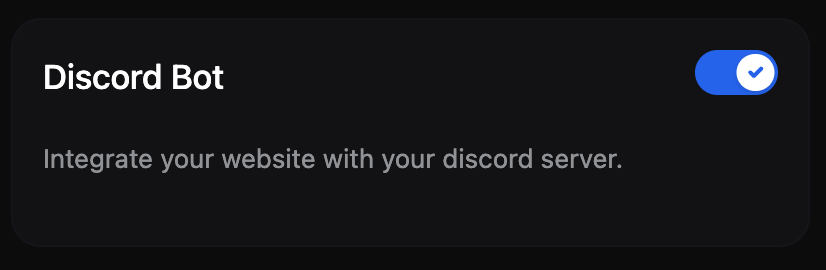
1. Enable the Discord Bot module from the **Dashboard > Settings > Modules** page.
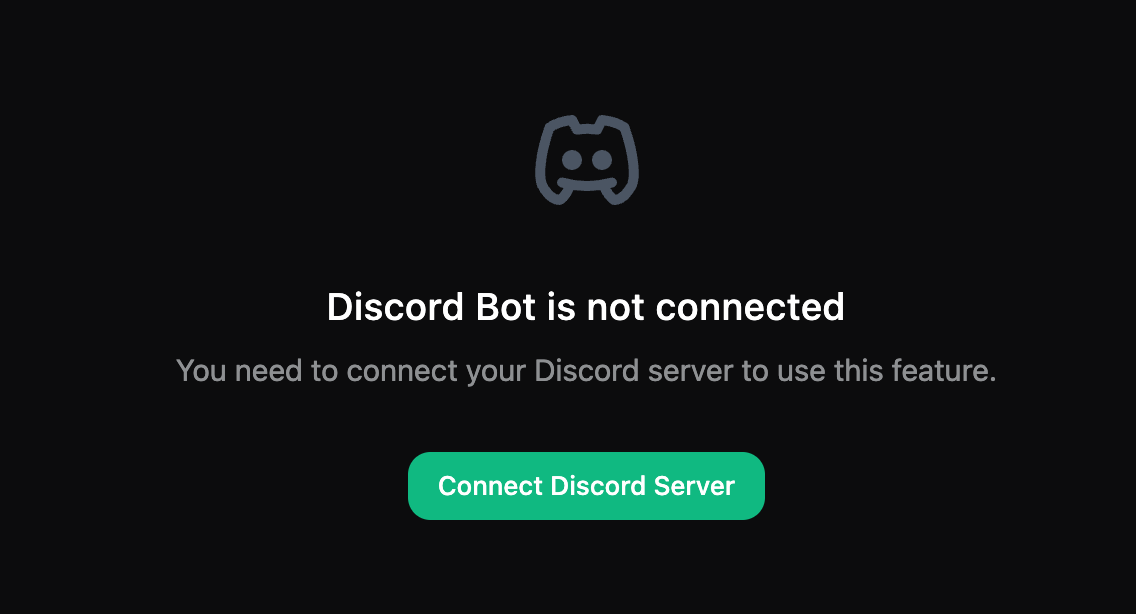
 2. Click the "Connect Discord Server" button on the **Dashboard > Settings > Discord Bot** page.
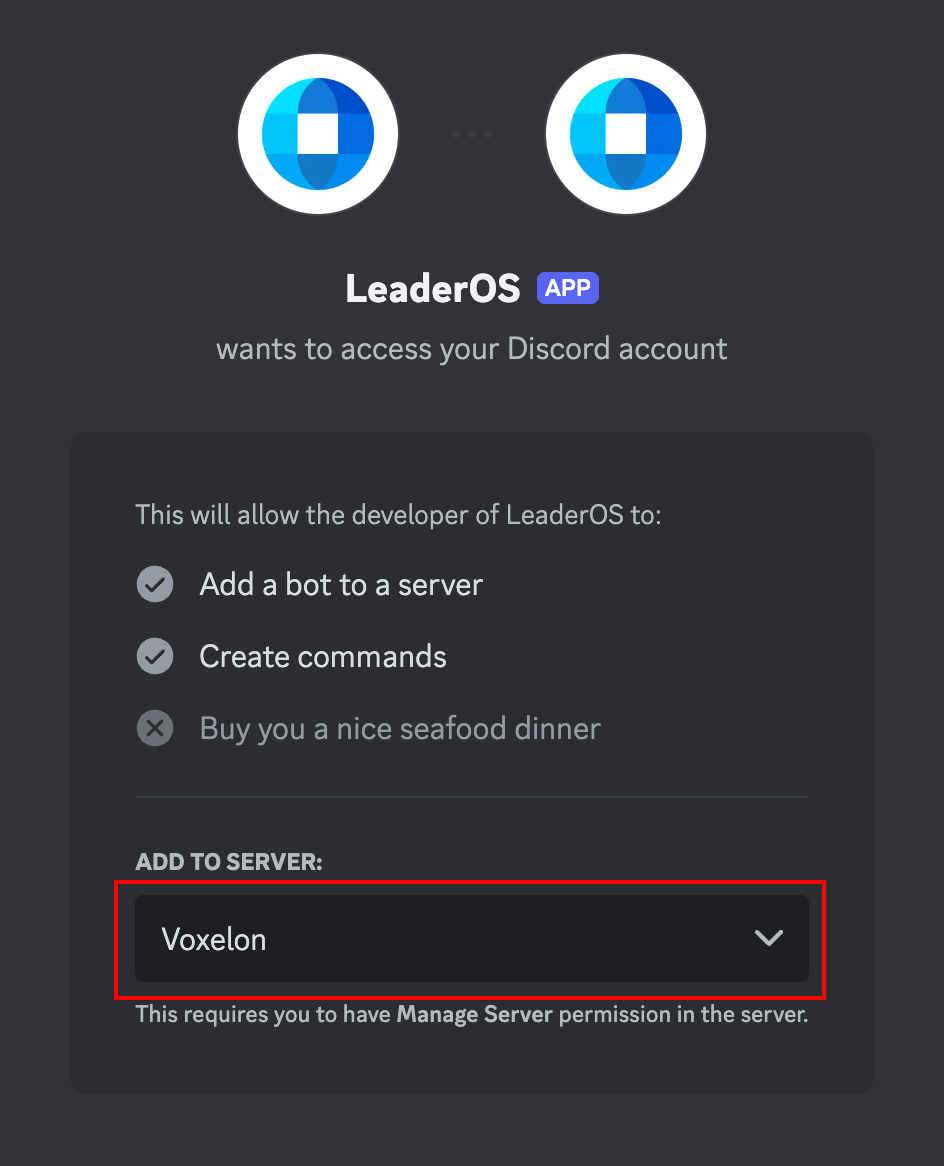
 3. Complete the steps on the opened page:
* **Step 1:** Invite the Discord bot.
3. Complete the steps on the opened page:
* **Step 1:** Invite the Discord bot.
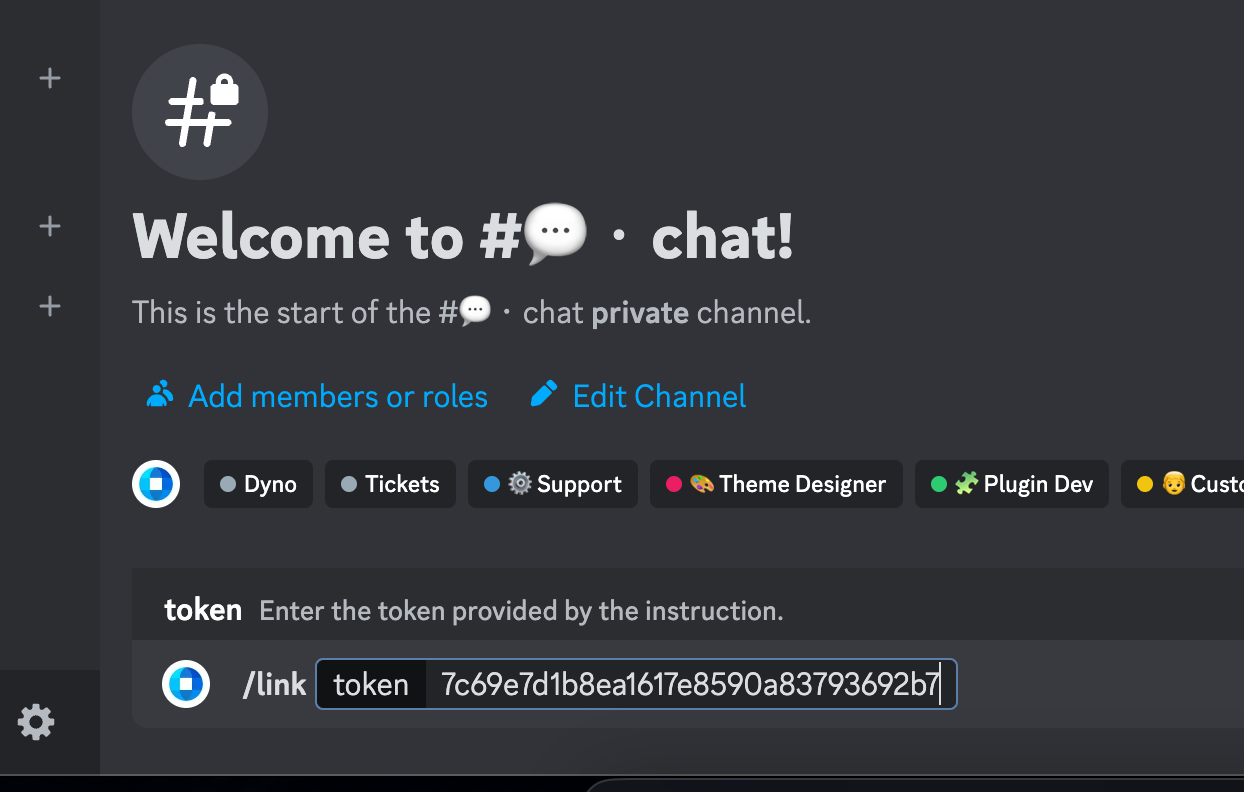
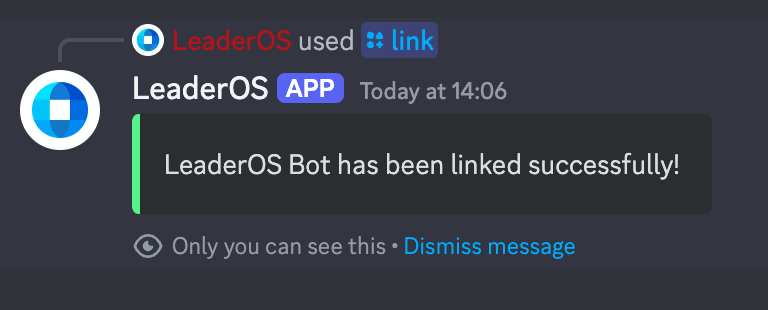
 * **Step 2:** Use the "/link \" command to establish the connection with the invited bot.
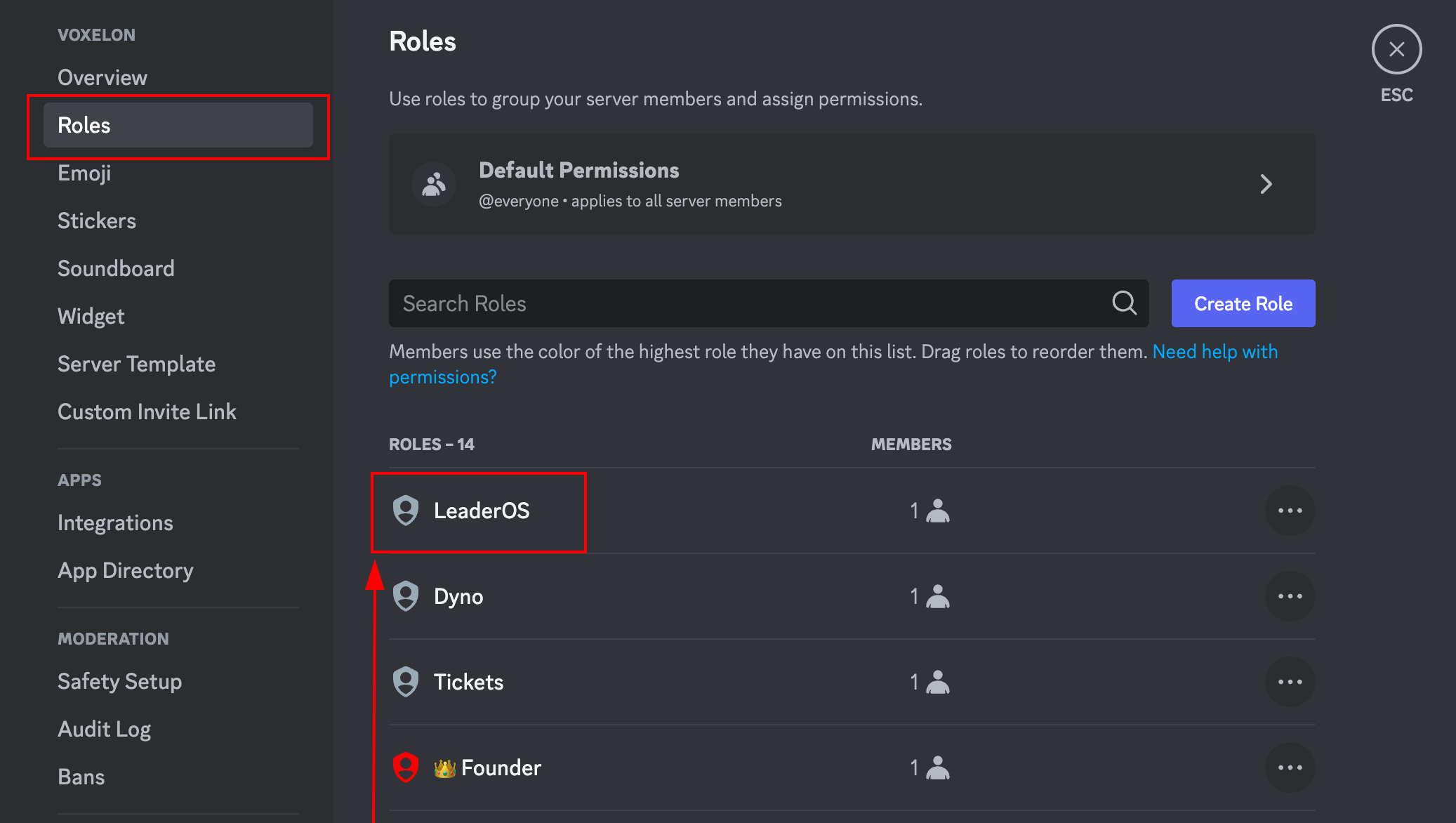
 * **Step 3:** Move the bot's role to the top in the **Discord Application > Server Settings > Roles** page.
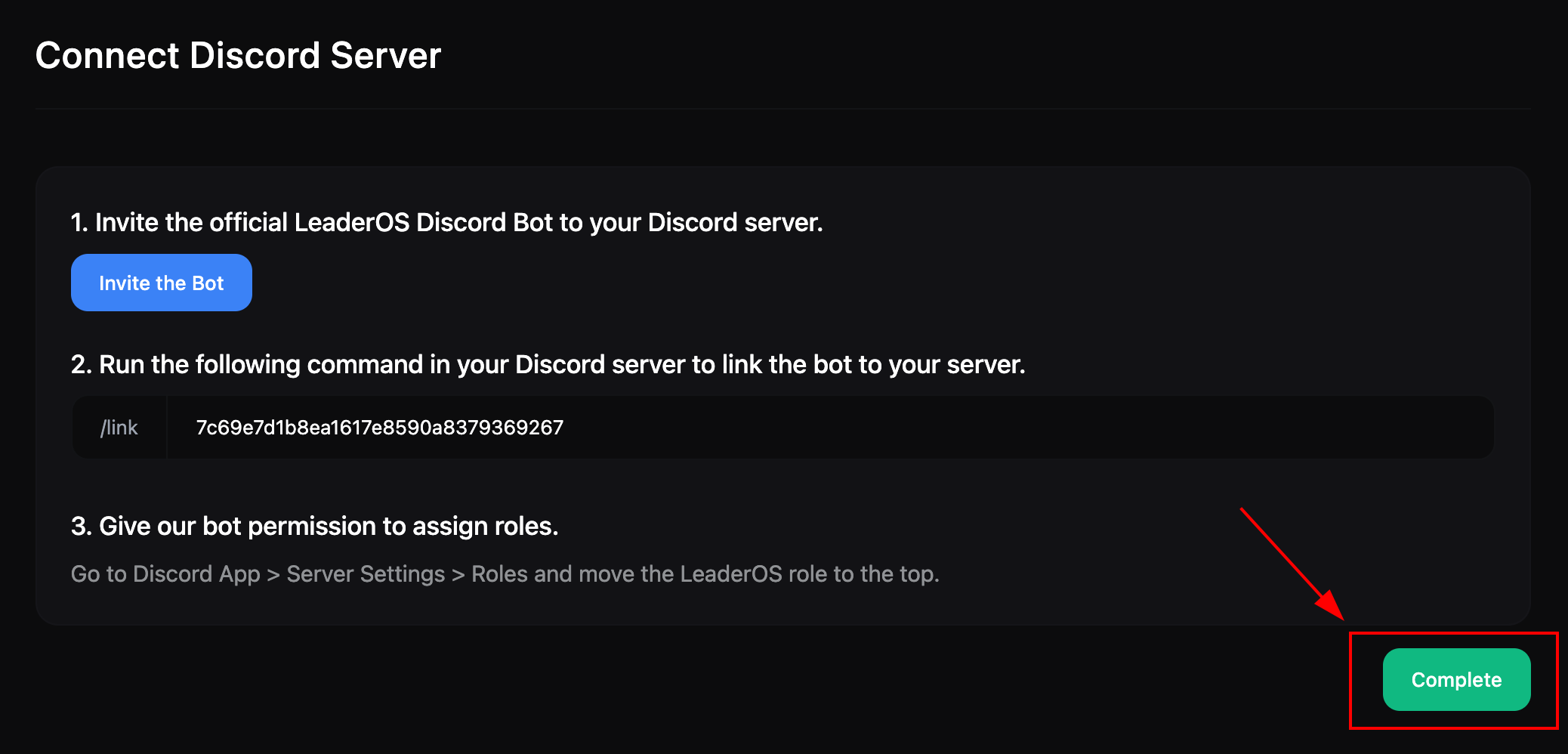
 4. Click the "**Complete**" button to finish the setup.
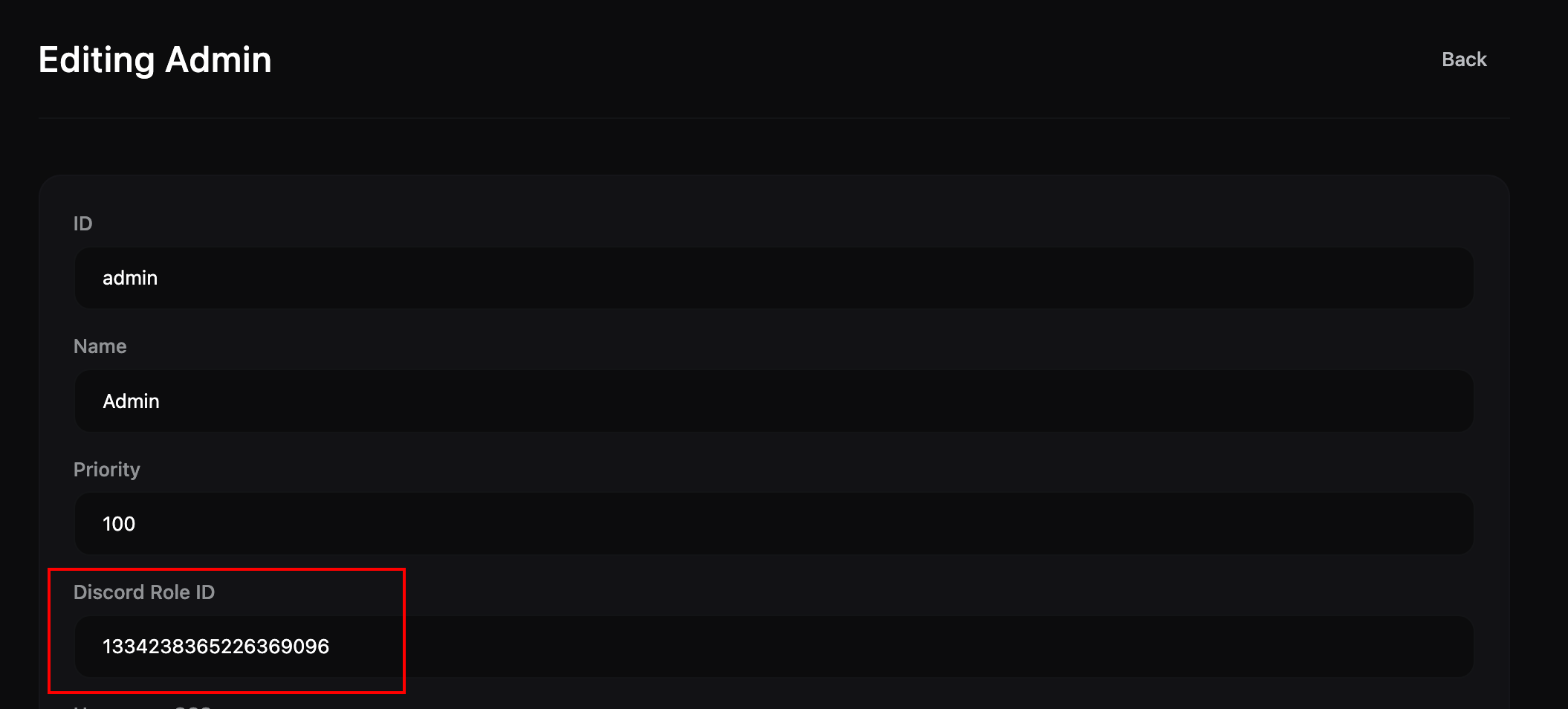
 5. Edit the website roles to match with Discord from the **Dashboard > User Management > Roles** page.
 ### Settings
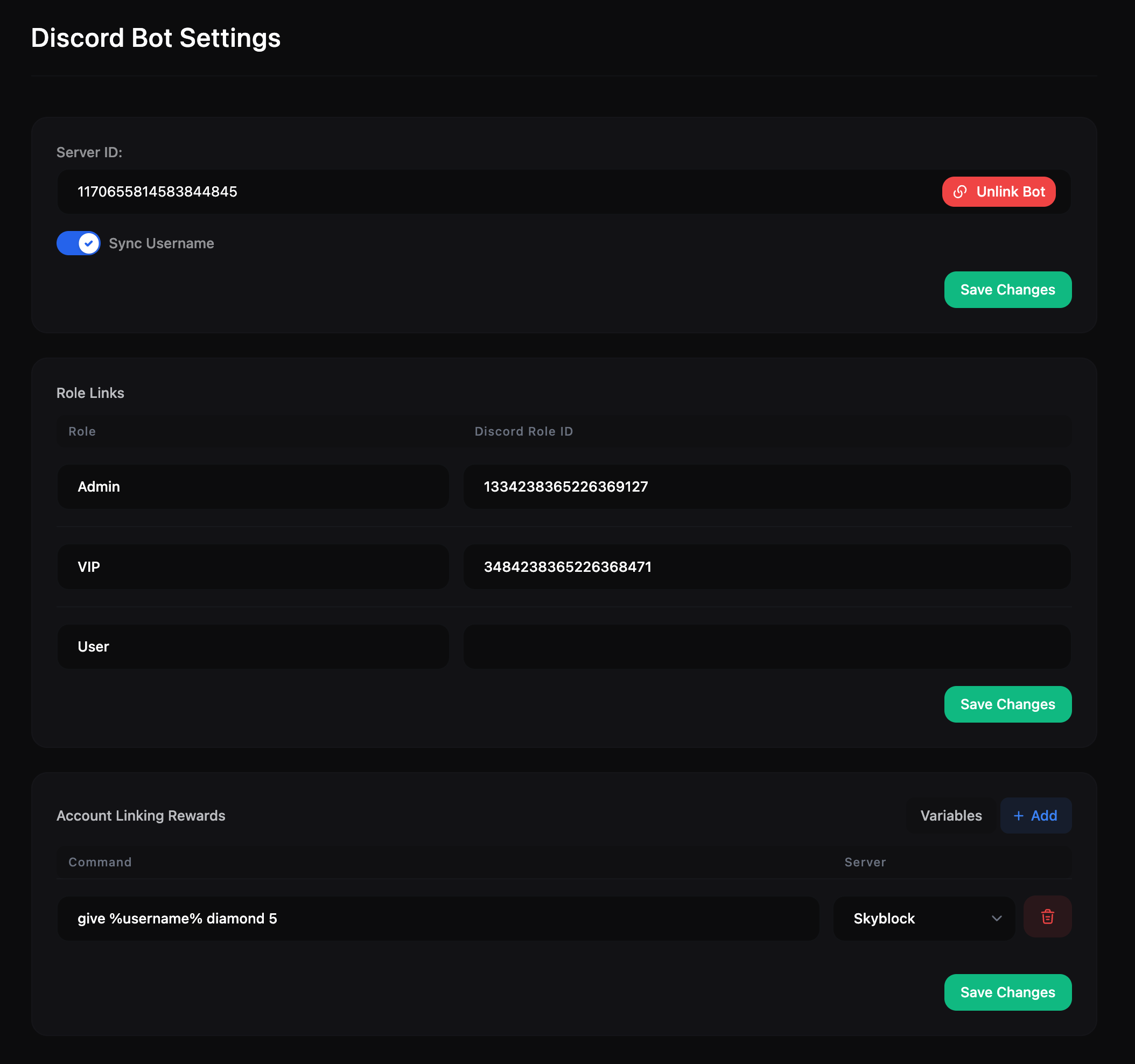
You can configure the Discord Bot settings from the **Dashboard > Settings > Discord Bot** page.
* **Server ID:** The ID (Guild ID) of the Discord server the bot is connected to. Clicking the "**Remove Bot Connection**" button will disconnect the bot. You need to unlink the bot to connect it to another server.
* **Sync Username:** Changes the Discord username of users to match their in-game username.
* **Role Links:** Map your website roles to Discord roles for synchronization.
* **Account Linking Rewards:** Commands added here will execute on your server once a user links their Discord account. You can use `%username%` as a placeholder for the linked user's in-game username.
### Settings
You can configure the Discord Bot settings from the **Dashboard > Settings > Discord Bot** page.
* **Server ID:** The ID (Guild ID) of the Discord server the bot is connected to. Clicking the "**Remove Bot Connection**" button will disconnect the bot. You need to unlink the bot to connect it to another server.
* **Sync Username:** Changes the Discord username of users to match their in-game username.
* **Role Links:** Map your website roles to Discord roles for synchronization.
* **Account Linking Rewards:** Commands added here will execute on your server once a user links their Discord account. You can use `%username%` as a placeholder for the linked user's in-game username.
 ### Troubleshooting
* If you encounter the error **"An error occurred while connecting to the Discord server."**, reset the API Key from the **Dashboard > Settings > API** page and try again.
### Troubleshooting
* If you encounter the error **"An error occurred while connecting to the Discord server."**, reset the API Key from the **Dashboard > Settings > API** page and try again.