> ## Documentation Index
> Fetch the complete documentation index at: https://docs.leaderos.net/llms.txt
> Use this file to discover all available pages before exploring further.

# Email Templates

> Customize the email templates that are sent to your users.

<Warning>
  SMTP settings must be configured to send emails. Otherwise you cannot use features and modules that use the SMTP system. Learn more about the [SMTP system](/settings/smtp).
</Warning>

## How to customize email templates?

1. Go to **Settings** > **Email Templates**.
2. Choose the email template you want to customize.
3. You can customize the template using the editor.

## How to change the logo?

1. Go to **Settings** > **Email Templates**.
2. Choose the email template you want to customize.
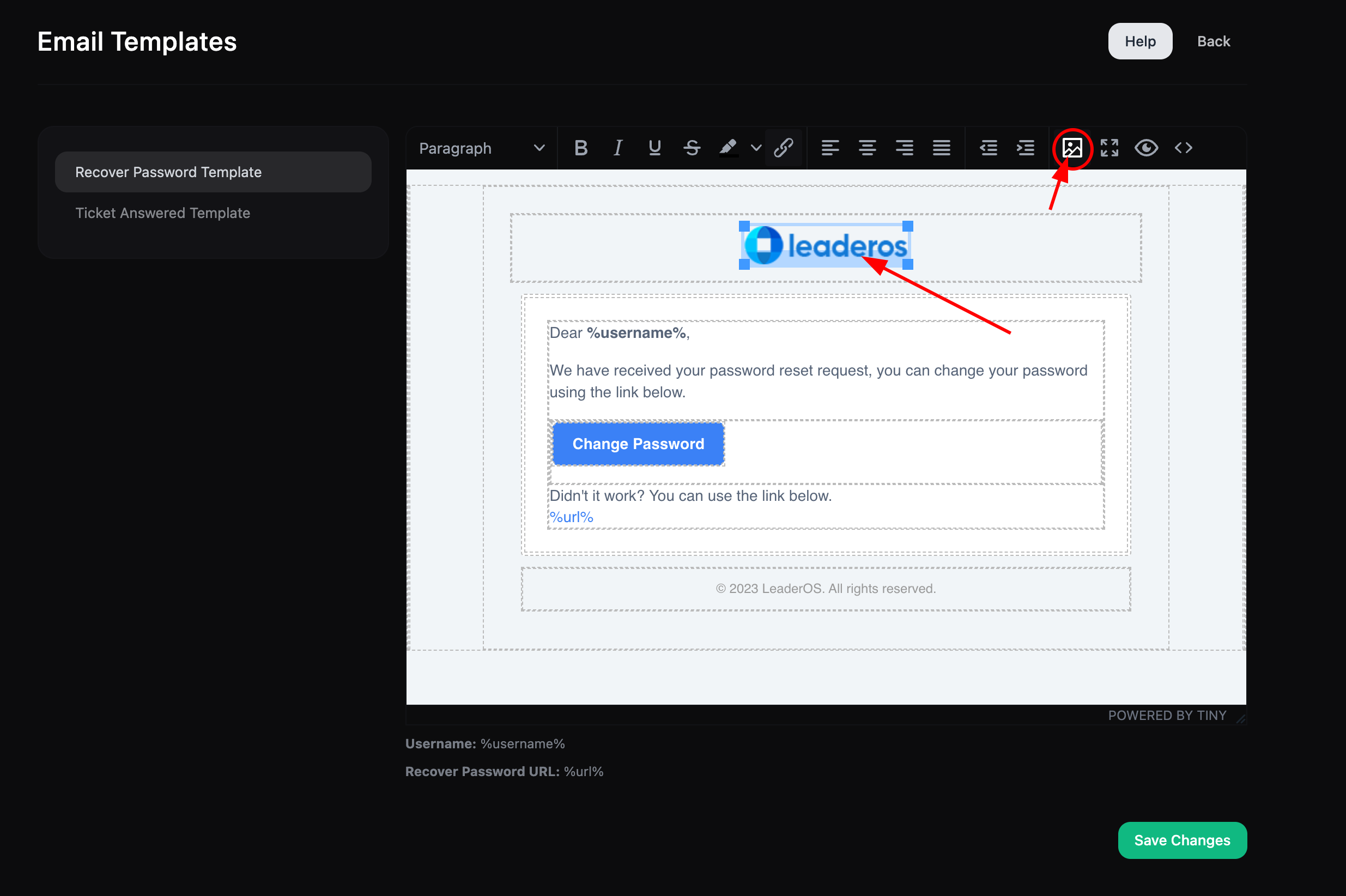
3. Select the logo and click on the **Image** button.
   <img src="https://mintcdn.com/leaderos/RSiB1c7CNJn9Y9yJ/images/settings/email-template-logo1.png?fit=max&auto=format&n=RSiB1c7CNJn9Y9yJ&q=85&s=2da55aac25570138c79dcc6b009876e6" alt="Image" width="2470" height="1644" data-path="images/settings/email-template-logo1.png" />
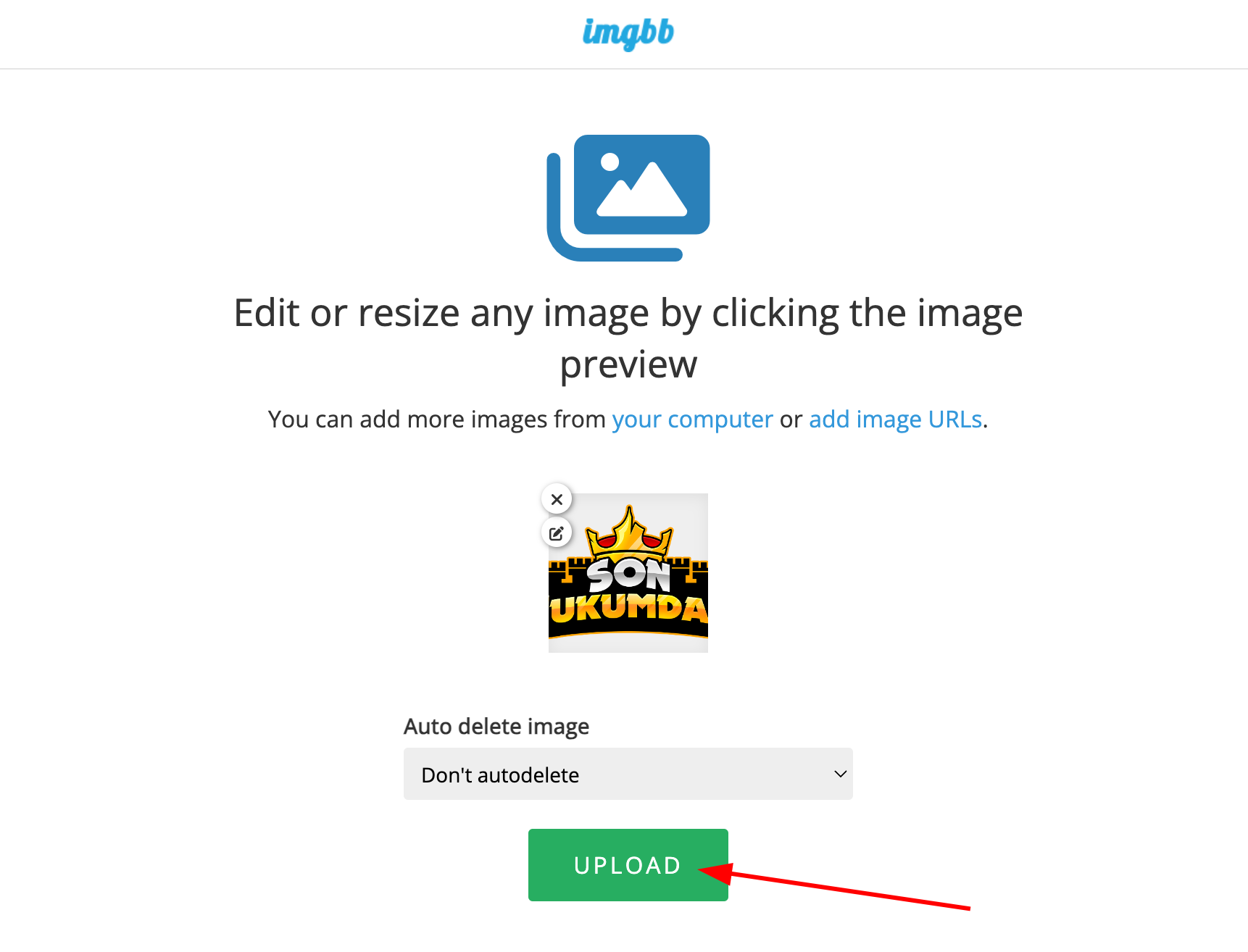
4. Go to [ImgBB](https://imgbb.com) to upload your logo.
   <img src="https://mintcdn.com/leaderos/RSiB1c7CNJn9Y9yJ/images/settings/email-template-logo2.png?fit=max&auto=format&n=RSiB1c7CNJn9Y9yJ&q=85&s=20f55e34338ac439998112b9d598312c" alt="Image" width="1722" height="1314" data-path="images/settings/email-template-logo2.png" />
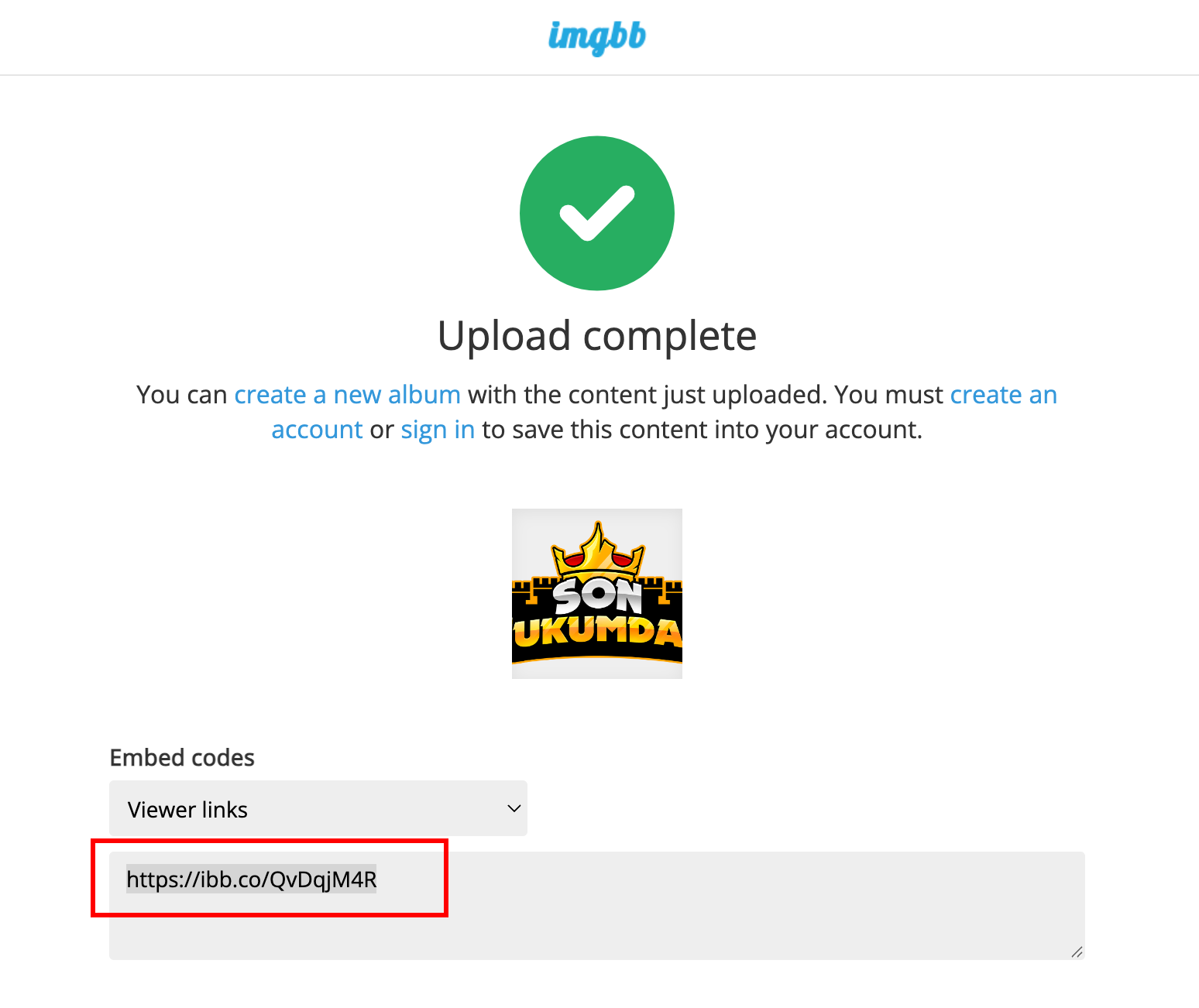
5. Visit the uploaded image link.
   <img src="https://mintcdn.com/leaderos/RSiB1c7CNJn9Y9yJ/images/settings/email-template-logo3.png?fit=max&auto=format&n=RSiB1c7CNJn9Y9yJ&q=85&s=36b52496695aceb44d50c3adf3f32b17" alt="Image" width="1548" height="1302" data-path="images/settings/email-template-logo3.png" />
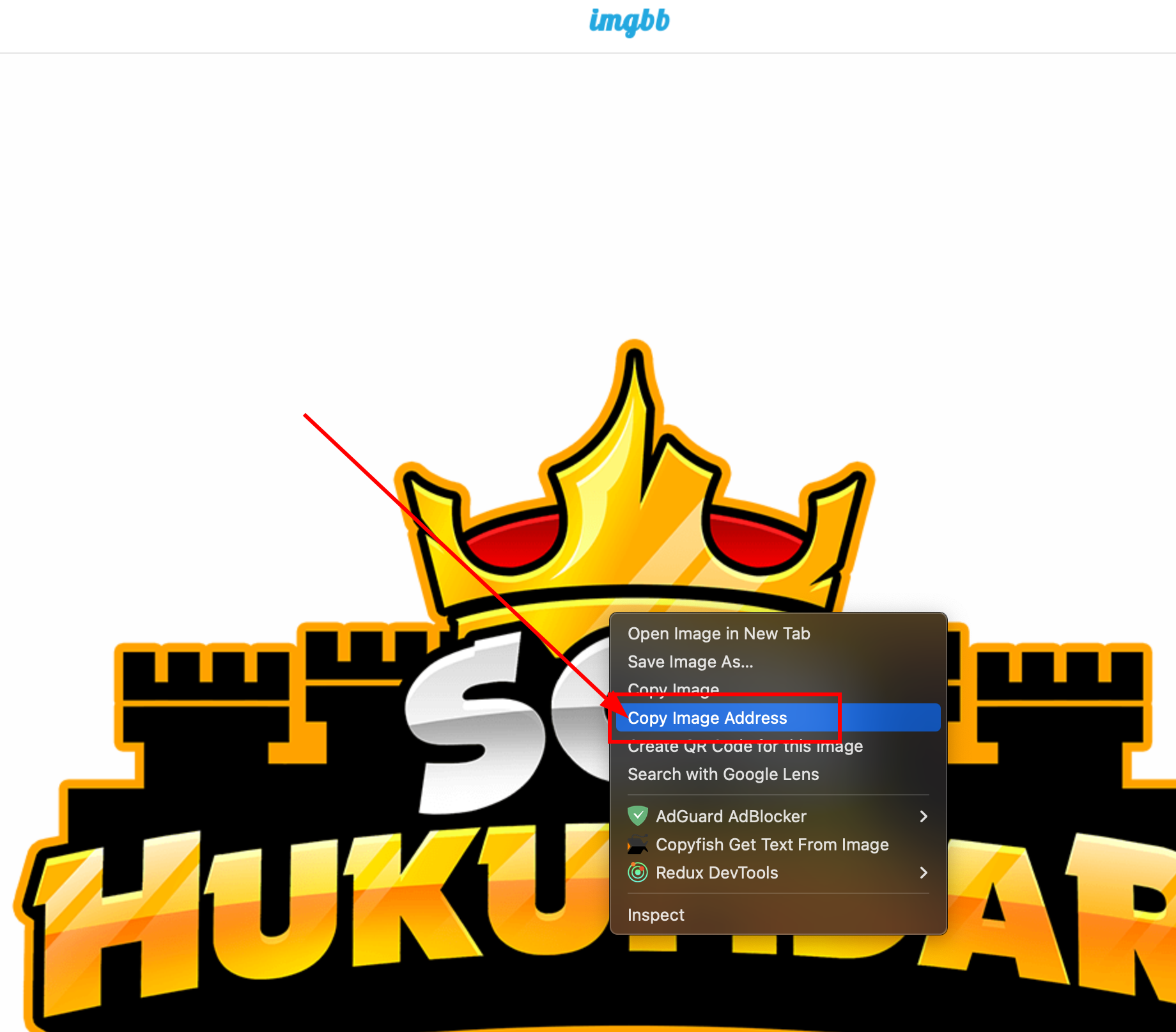
6. Right-click on the image and select **Copy Image Address**.
   <img src="https://mintcdn.com/leaderos/RSiB1c7CNJn9Y9yJ/images/settings/email-template-logo4.png?fit=max&auto=format&n=RSiB1c7CNJn9Y9yJ&q=85&s=7d96502eb088c24eae0e79cfc8eee401" alt="Image" width="1840" height="1614" data-path="images/settings/email-template-logo4.png" />
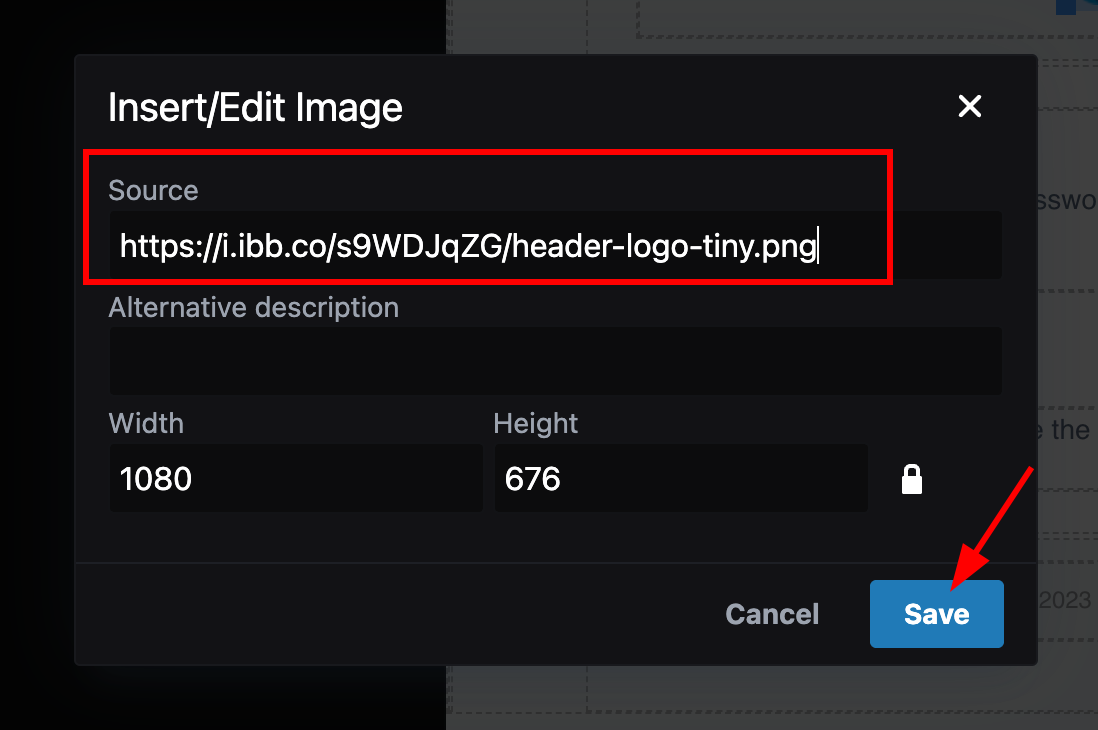
7. Paste the image link in the Source field and save.
   <img src="https://mintcdn.com/leaderos/RSiB1c7CNJn9Y9yJ/images/settings/email-template-logo5.png?fit=max&auto=format&n=RSiB1c7CNJn9Y9yJ&q=85&s=423920b7be7e0cb632852fdb8f478ac8" alt="Image" width="1098" height="730" data-path="images/settings/email-template-logo5.png" />
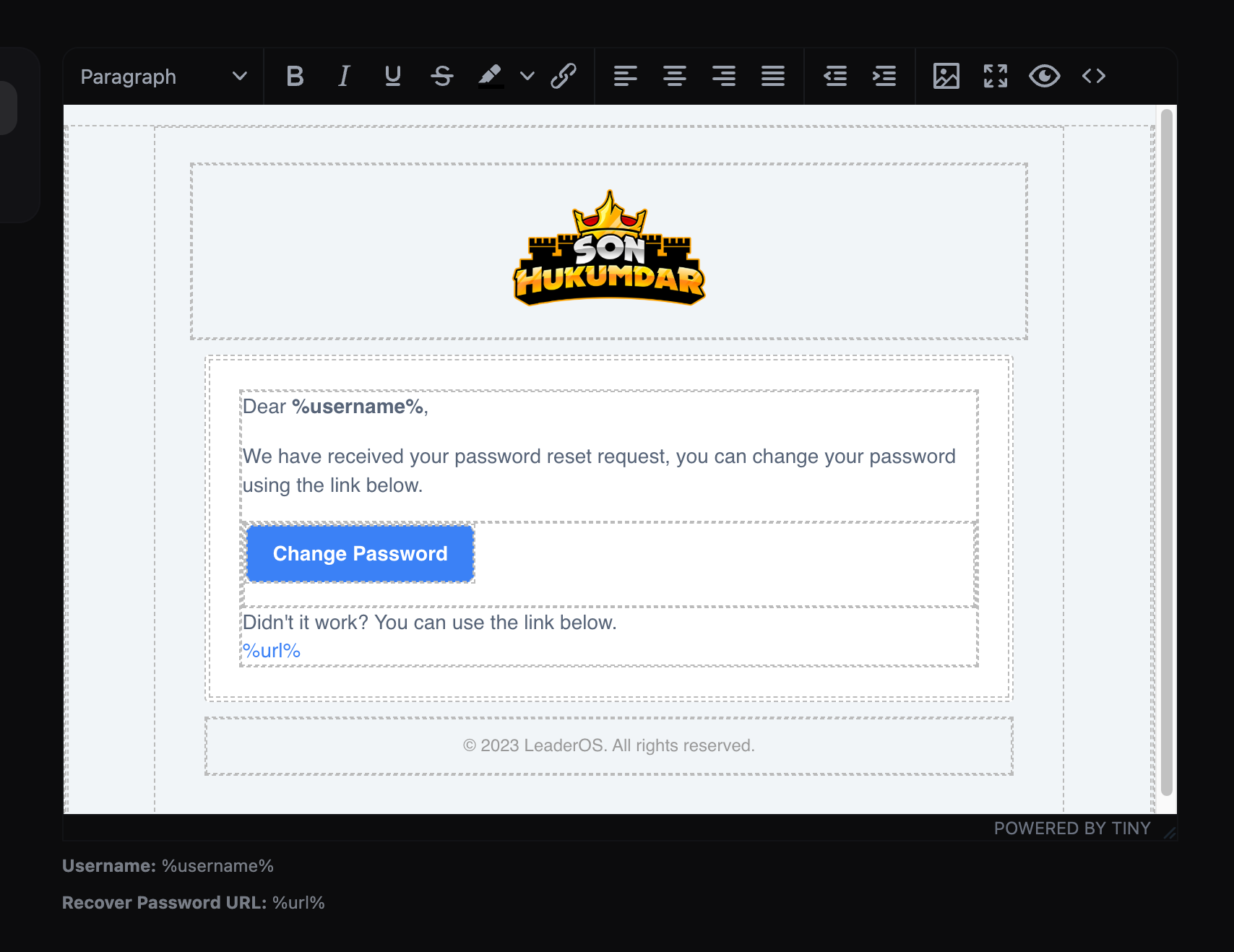
8. The logo will be updated in the email template.
   <img src="https://mintcdn.com/leaderos/RSiB1c7CNJn9Y9yJ/images/settings/email-template-logo6.png?fit=max&auto=format&n=RSiB1c7CNJn9Y9yJ&q=85&s=3a414618fda80a59797a044e0b2aa9a5" alt="Image" width="1708" height="1318" data-path="images/settings/email-template-logo6.png" />