> ## Documentation Index
> Fetch the complete documentation index at: https://docs.leaderos.net/llms.txt
> Use this file to discover all available pages before exploring further.
# SMTP (Mail)
> Through SMTP, you can use some features such as Email Confirmation, Password Reset, Purchase Emails.
SMTP settings must be configured to send emails. Otherwise you cannot use features and modules that use the SMTP system.
**The SMTP settings page allows you to configure the parameters necessary for your email sending functionality. Below are the input fields with brief explanations of their purposes:**
* **SMTP Server:** Enter the address of your SMTP (Simple Mail Transfer Protocol) server. This is the server responsible for sending your emails.
* **SMTP Port:** Specify the port number used by your SMTP server. Common values include 25, 587, and 465, depending on the security configuration.
* **SMTP Security (SSL/TLS):** Choose the security protocol for your SMTP connection. Options include SSL (Secure Sockets Layer) or TLS (Transport Layer Security) to encrypt the communication between your server and the SMTP server.
* **SMTP Sender Email Address:** Provide the email address from which your system will send emails. This is the address that will appear as the sender of the emails.
* **SMTP Username:** Enter the username associated with the SMTP server. This is used to authenticate your server with the SMTP server. Usually, this is the same as the email address.
* **SMTP Password:** Enter the password associated with the SMTP server. This ensures secure access to the SMTP server for sending emails.
* Ensure the accuracy of these settings to enable seamless communication with your SMTP server for effective email delivery.
If you're looking for a free SMTP service compatible with the provided SMTP settings, here are a few recommendations:
* **LeaderOS Web Hosting SMTP Service (Recommended!)**
* SendPulse
* Zoho Mail
* Yandex Mail
* Godaddy Email
## How can I setup/configure LeaderOS Web Hosting SMTP service?
1. Log in to your cPanel.
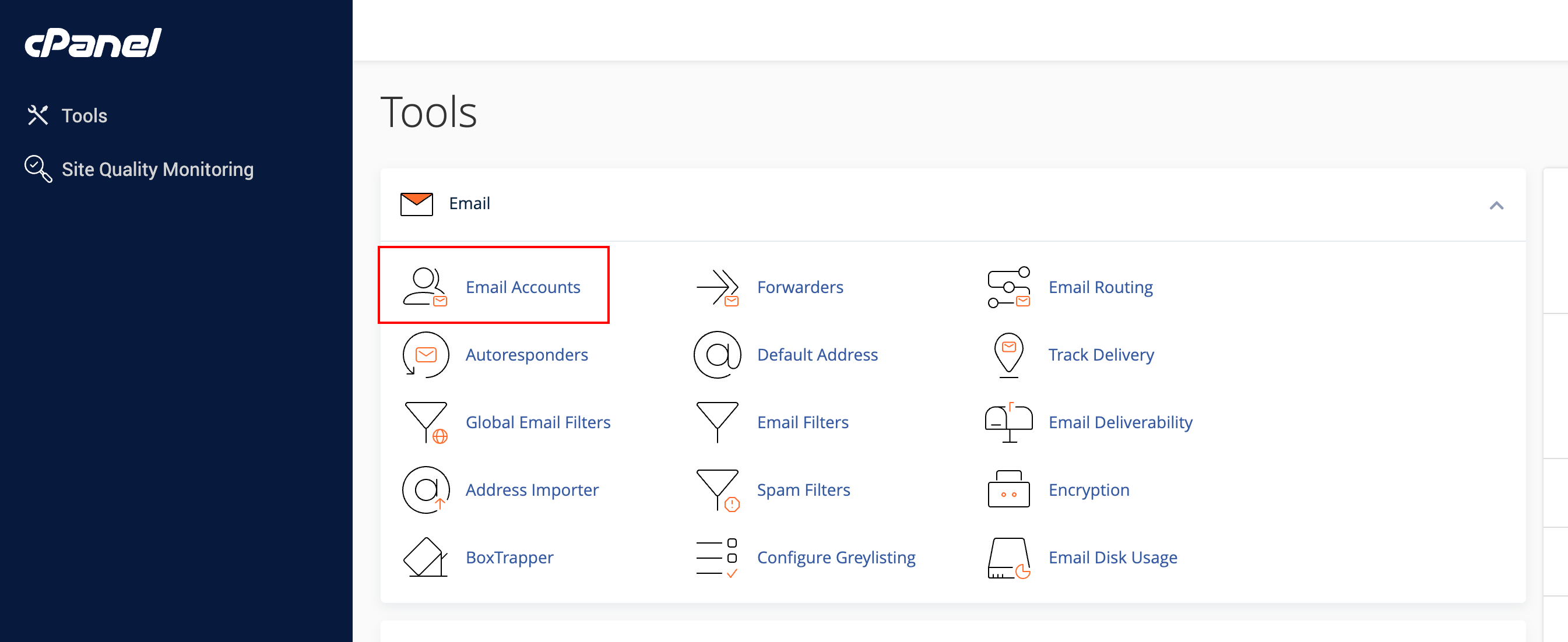 2. Go to **cPanel > Email > Email Accounts** and click on the **Create** button.
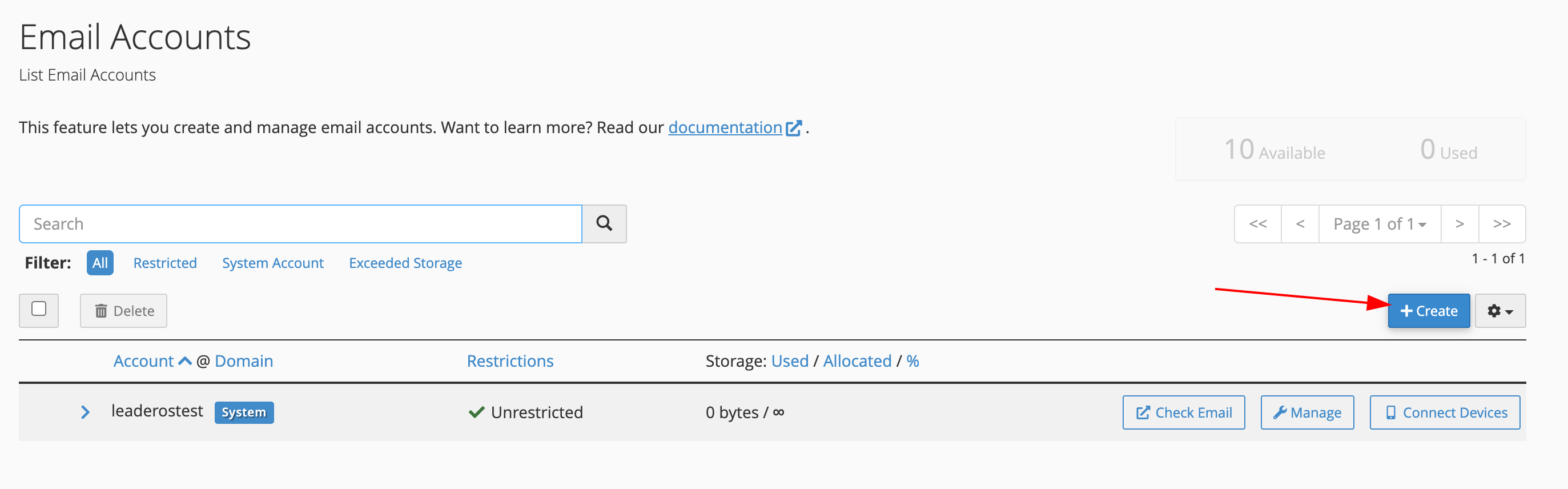 3. Create an email account. For example: [noreply@yourdomain.com](mailto:noreply@yourdomain.com)
 4. Go to **Dashboard > Settings > SMTP** and enter SMTP settings.
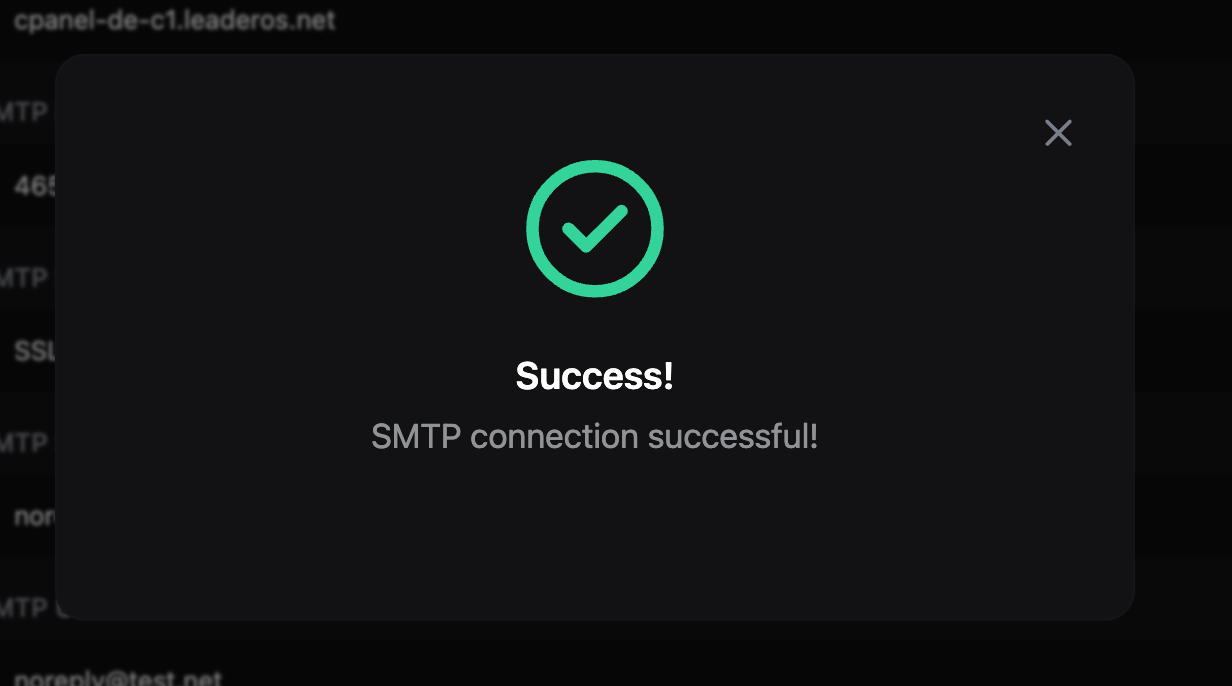
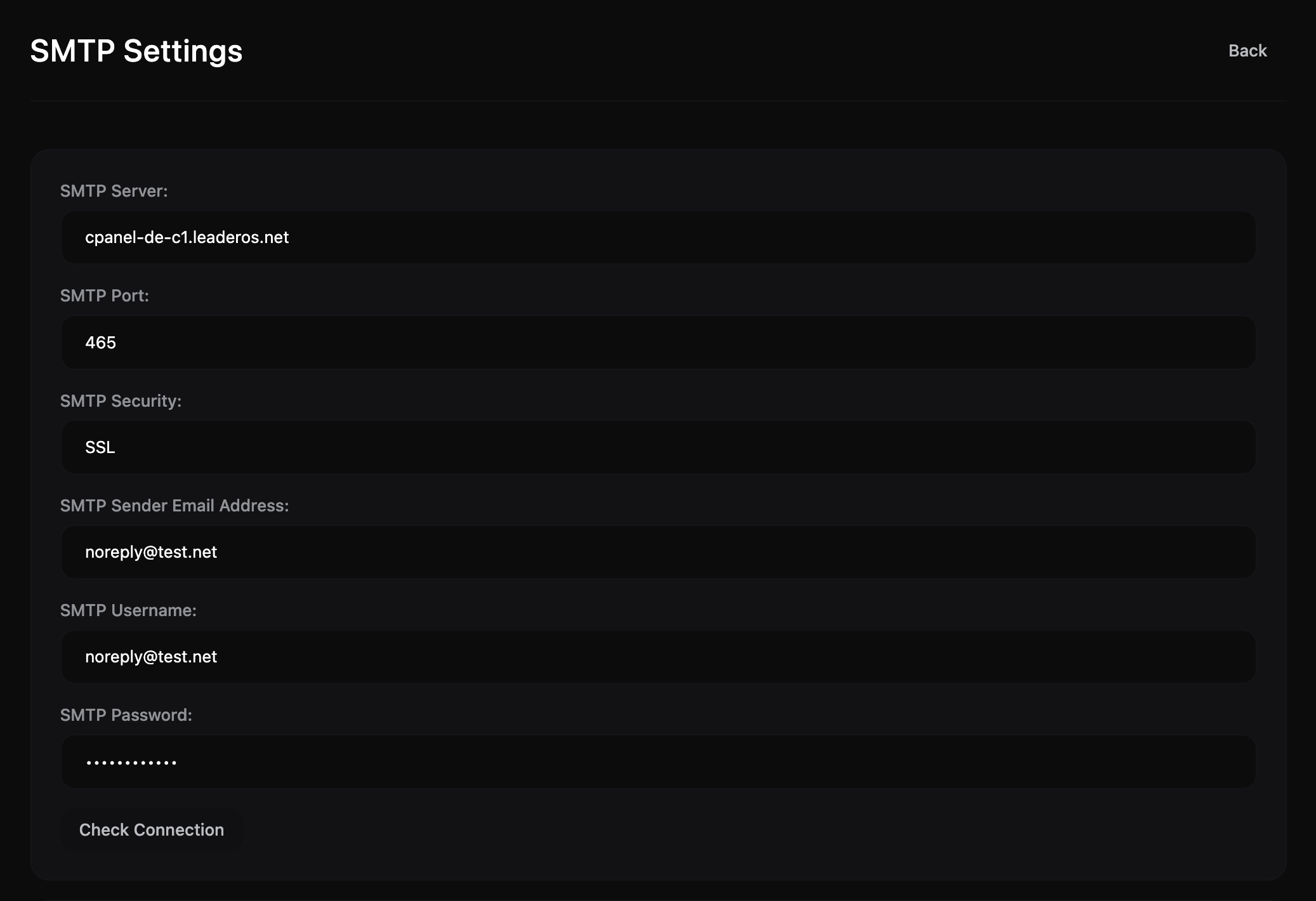 5. You can test the connection by clicking on the "Check Connection" button.
 If you are using an external DNS service, like Cloudflare, you must add DKIM, SPF and MX records. [How to add DKIM and SPF records to Cloudflare?](/settings/smtp#how-to-add-dkim-and-spf-records-to-cloudflare)
### LeaderOS Web Hosting SMTP Values:
* **SMTP Server:** Your cPanel hostname. `(Example cpanel-de-c1.leaderos.net)`
* **SMTP Port:** `465`
* **SMTP Security:** `SSL`
* **SMTP Sender Email Address:** The Email address you created. `(Example noreply@yourdomain.com)`
* **SMTP Username:** The same email as the "Sender Email Address". `(Example noreply@yourdomain.com)`
* **SMTP Password:** The password you set for the email account.
### How to add DKIM and SPF records to Cloudflare?
1. Login to your cPanel.
If you are using an external DNS service, like Cloudflare, you must add DKIM, SPF and MX records. [How to add DKIM and SPF records to Cloudflare?](/settings/smtp#how-to-add-dkim-and-spf-records-to-cloudflare)
### LeaderOS Web Hosting SMTP Values:
* **SMTP Server:** Your cPanel hostname. `(Example cpanel-de-c1.leaderos.net)`
* **SMTP Port:** `465`
* **SMTP Security:** `SSL`
* **SMTP Sender Email Address:** The Email address you created. `(Example noreply@yourdomain.com)`
* **SMTP Username:** The same email as the "Sender Email Address". `(Example noreply@yourdomain.com)`
* **SMTP Password:** The password you set for the email account.
### How to add DKIM and SPF records to Cloudflare?
1. Login to your cPanel.
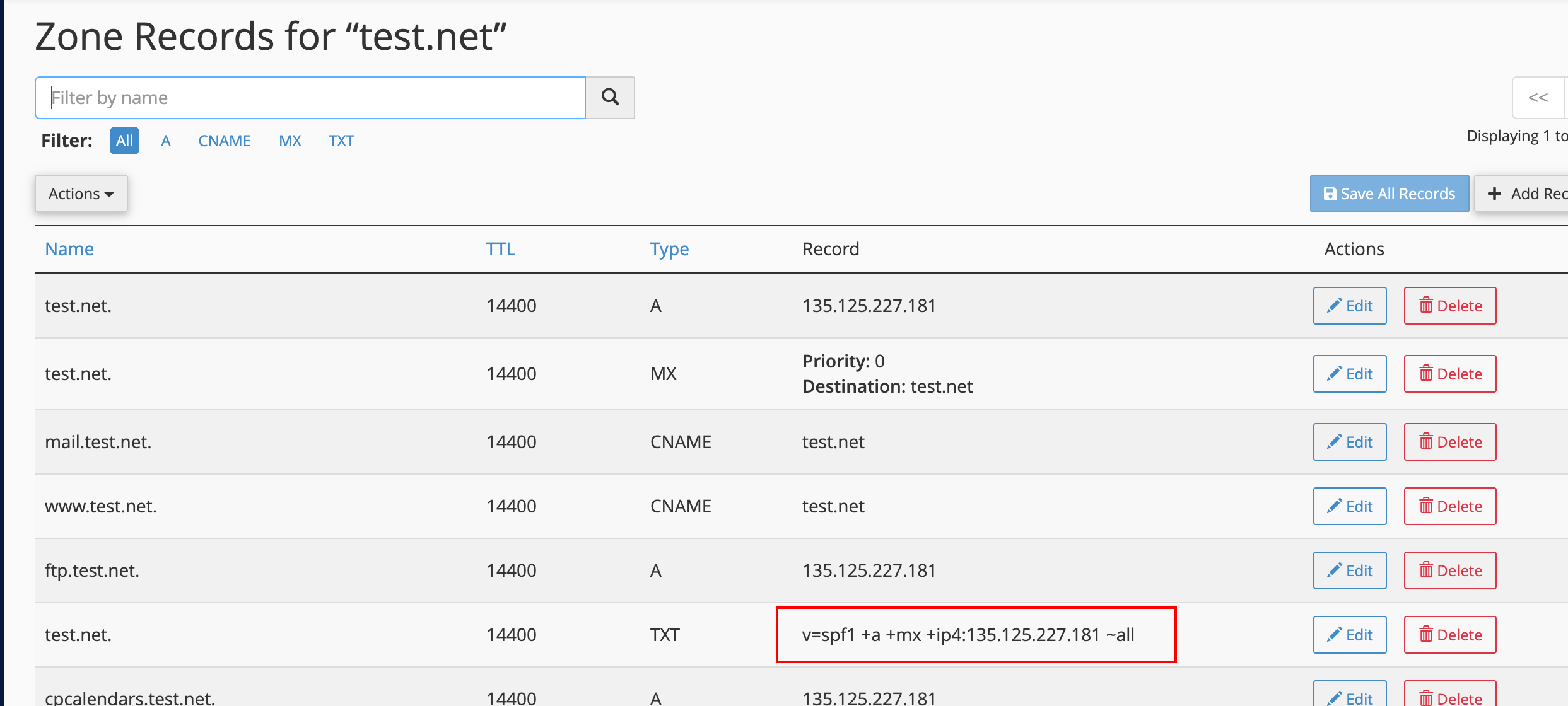
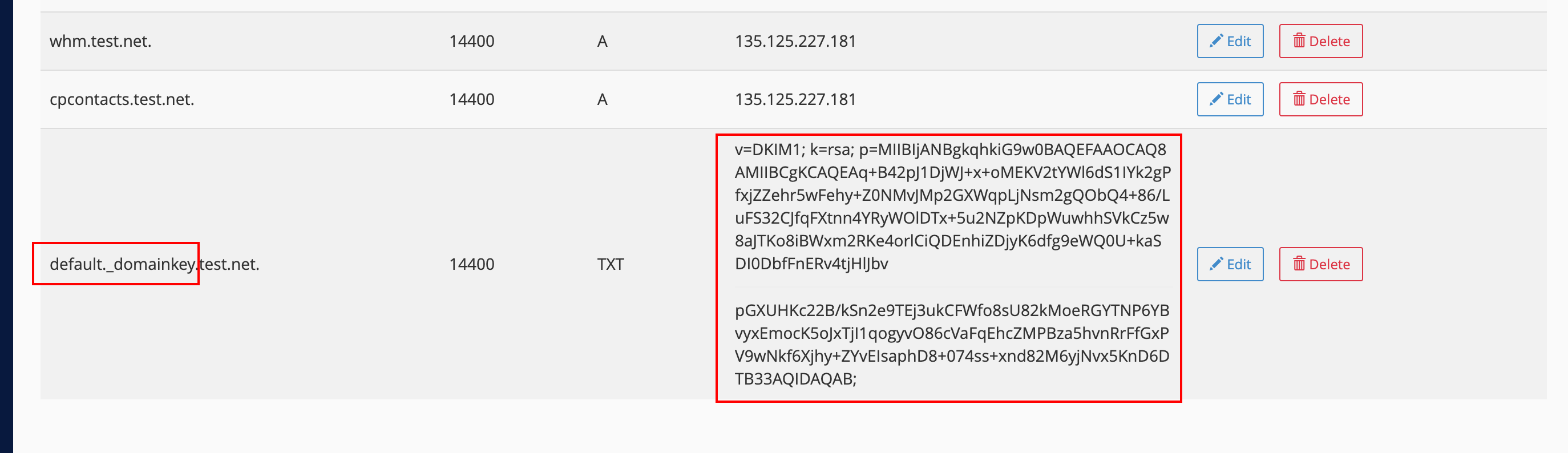
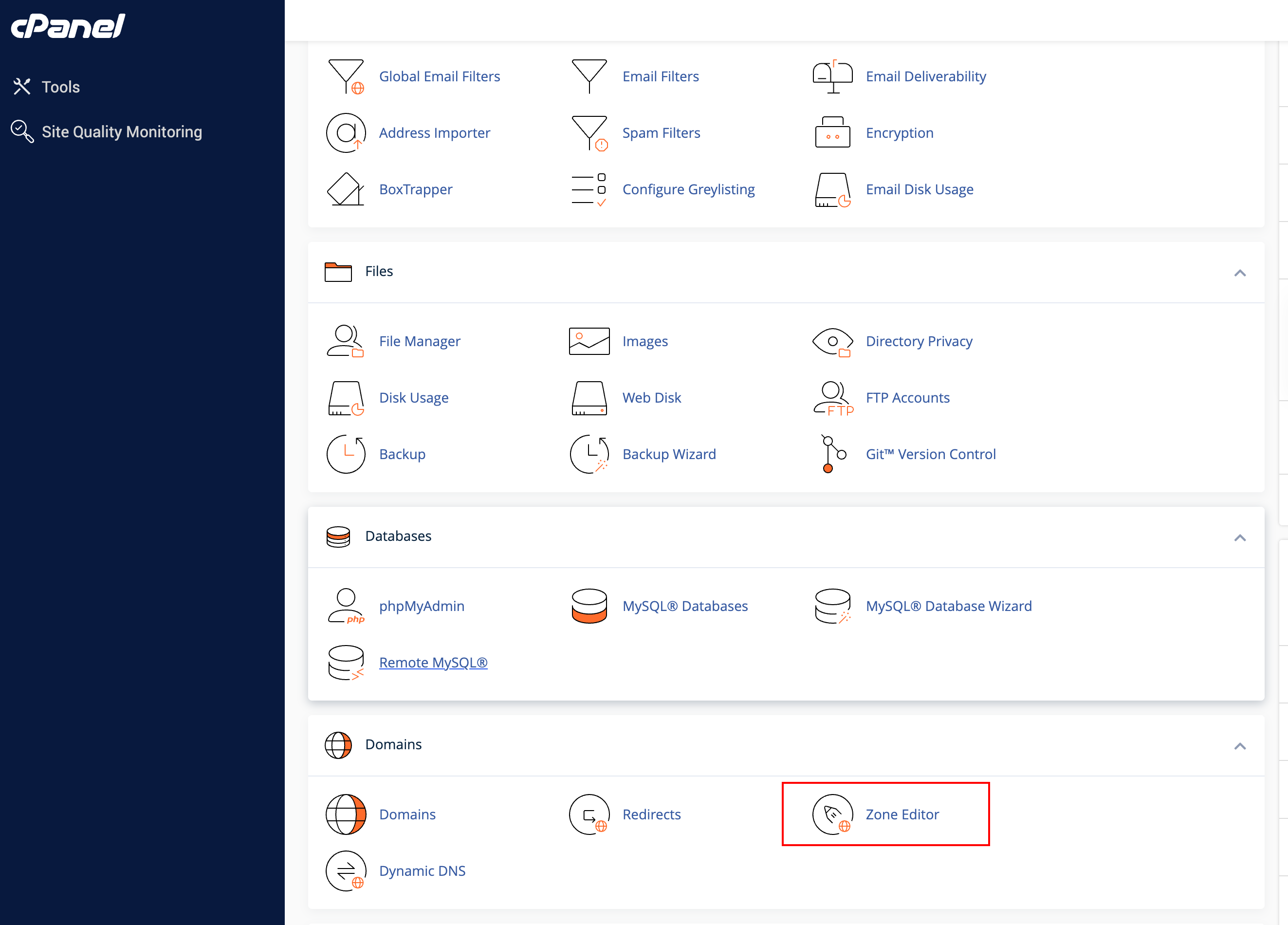 2. Go to **cPanel > Domains > Zone Editor > Manage**
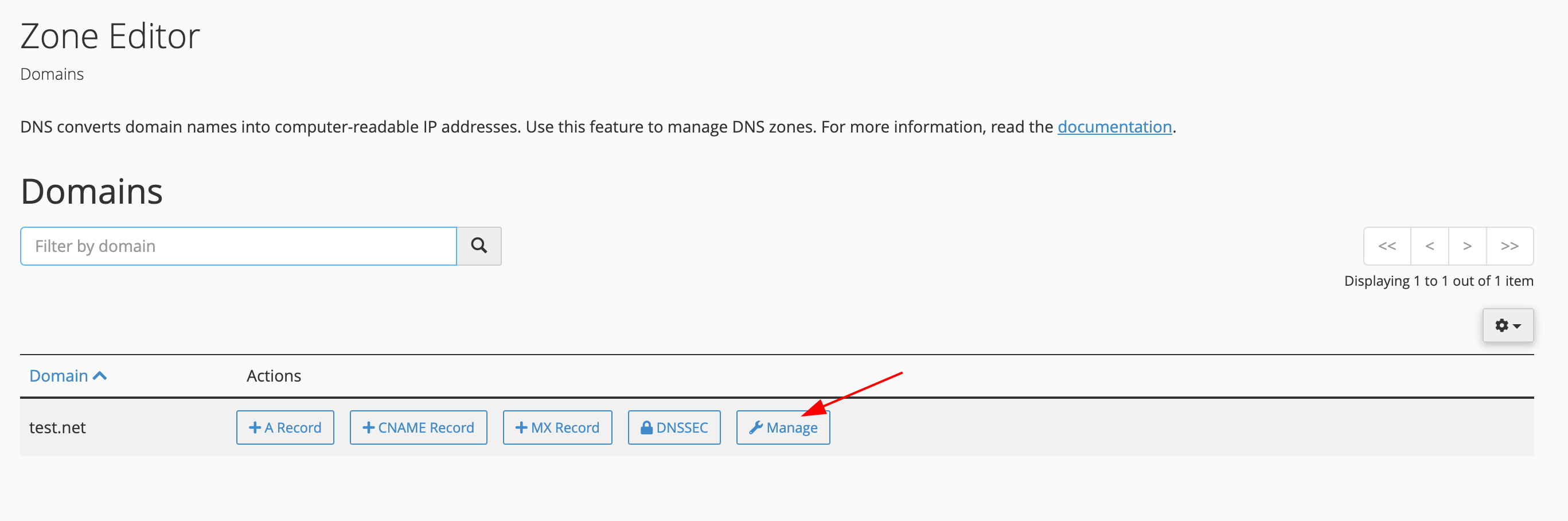 3. Find and copy the SPF record. The SPF value starts with **"v=spf1"**.
 4. Find and copy the DKIM record. The DKIM value starts with **"v=DKIM1;"**.
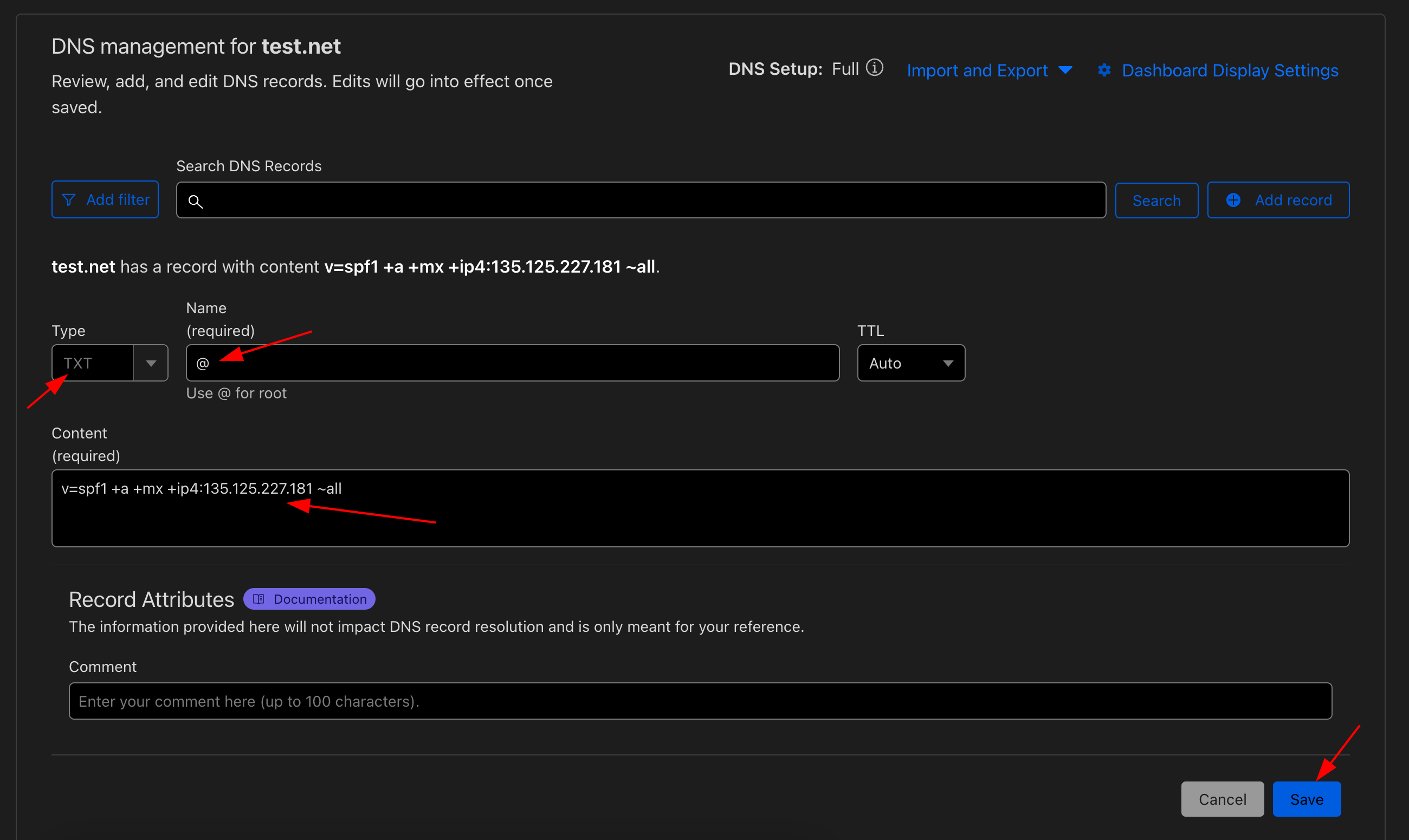
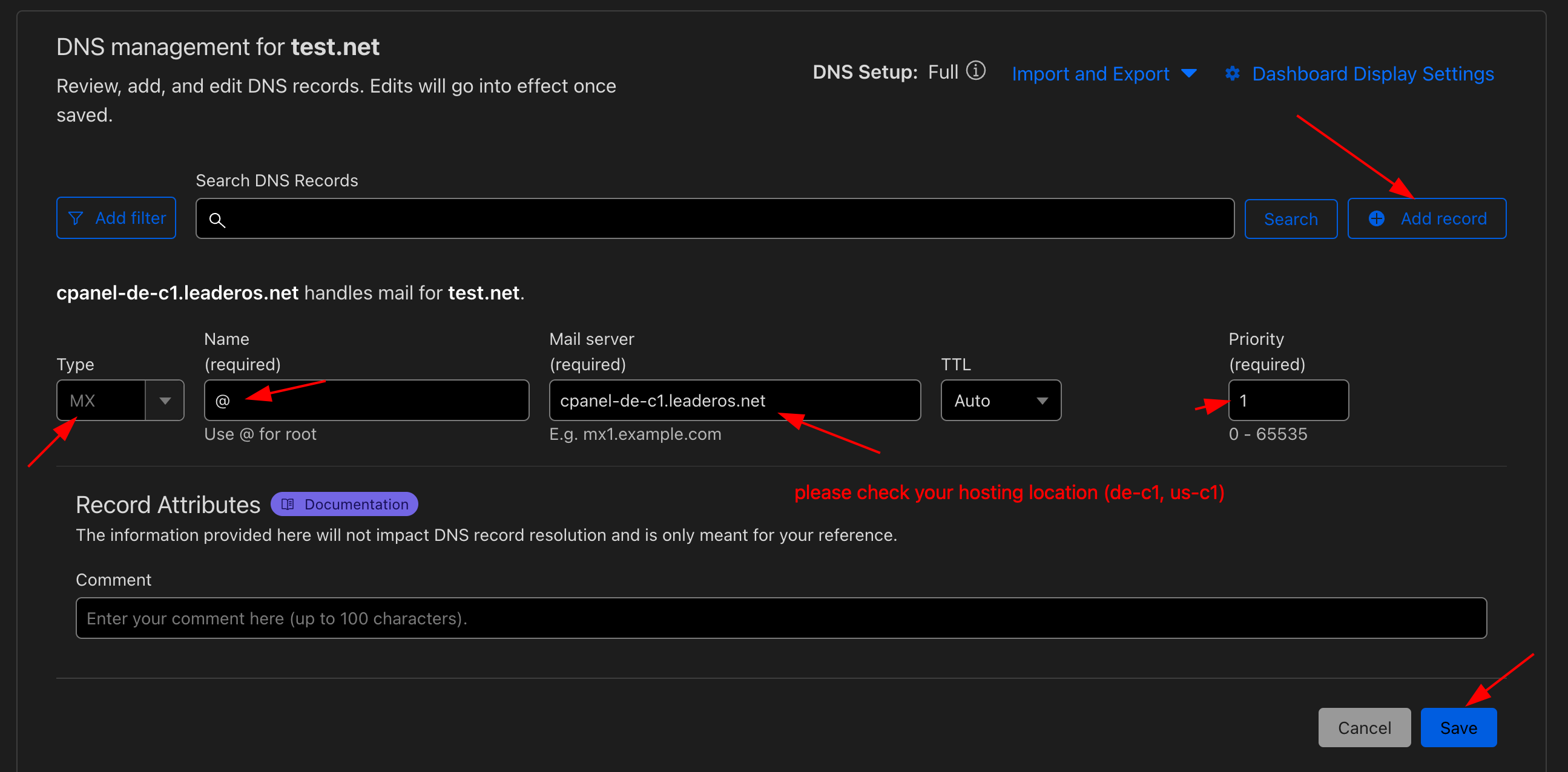
 5. Go to **Cloudflare > DNS** and add **SPF, DKIM and MX** records by clicking on the **Add Record** button.
**To add SPF record:**
* Type: TXT
* Name: @
* Content: SPF value you copied.
5. Go to **Cloudflare > DNS** and add **SPF, DKIM and MX** records by clicking on the **Add Record** button.
**To add SPF record:**
* Type: TXT
* Name: @
* Content: SPF value you copied.
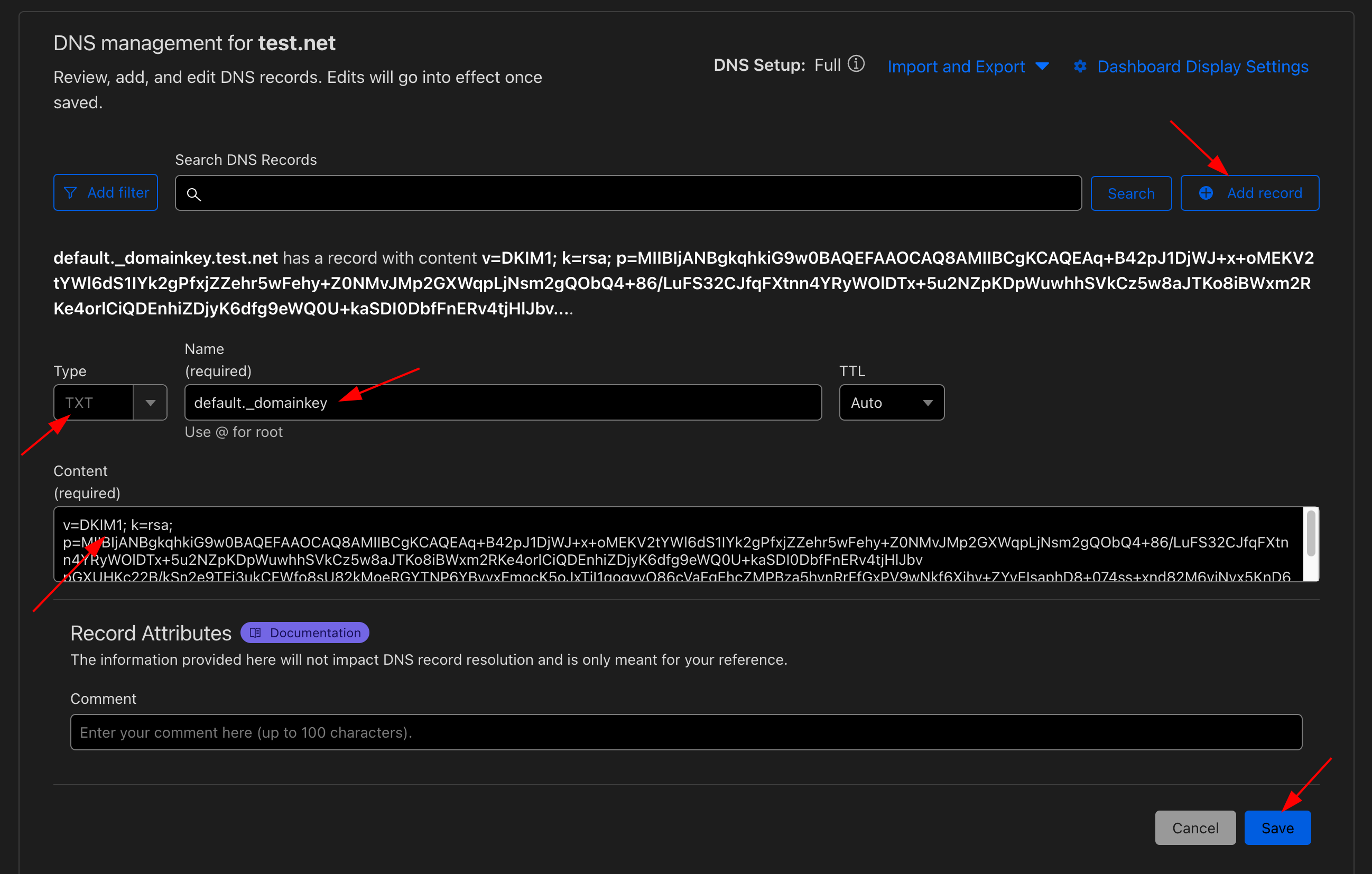
 **To add DKIM record:**
* Type: TXT
* Name: default.\_domainkey
* Content: DKIM value you copied.
**To add DKIM record:**
* Type: TXT
* Name: default.\_domainkey
* Content: DKIM value you copied.
 **To add MX record:**
* Type: MX
* Name: @
* Content: Your cpanel hostname. `(Example cpanel-de-c1.leaderos.net)`
**To add MX record:**
* Type: MX
* Name: @
* Content: Your cpanel hostname. `(Example cpanel-de-c1.leaderos.net)`
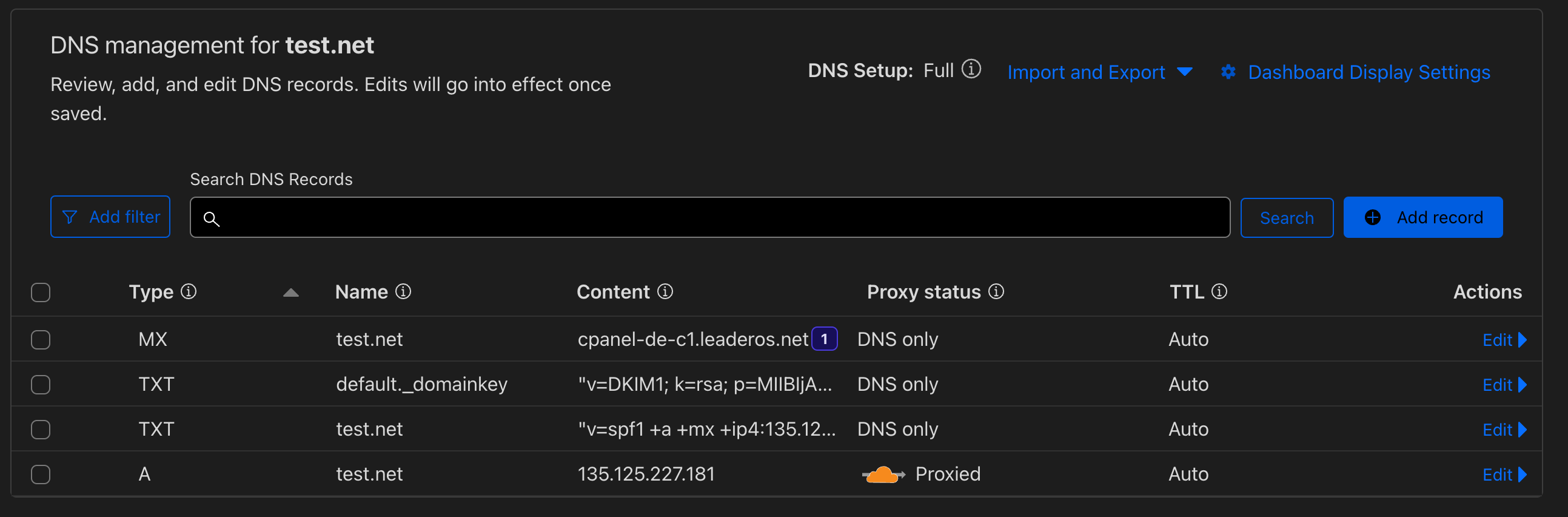
 6. Your DNS records should look like this.