> ## Documentation Index
> Fetch the complete documentation index at: https://docs.leaderos.net/llms.txt
> Use this file to discover all available pages before exploring further.
# Roles
> Create custom roles with the permissions set by you within the website. You can set these roles manually to the user or when a purchase is made in-store.
### How to create a role?
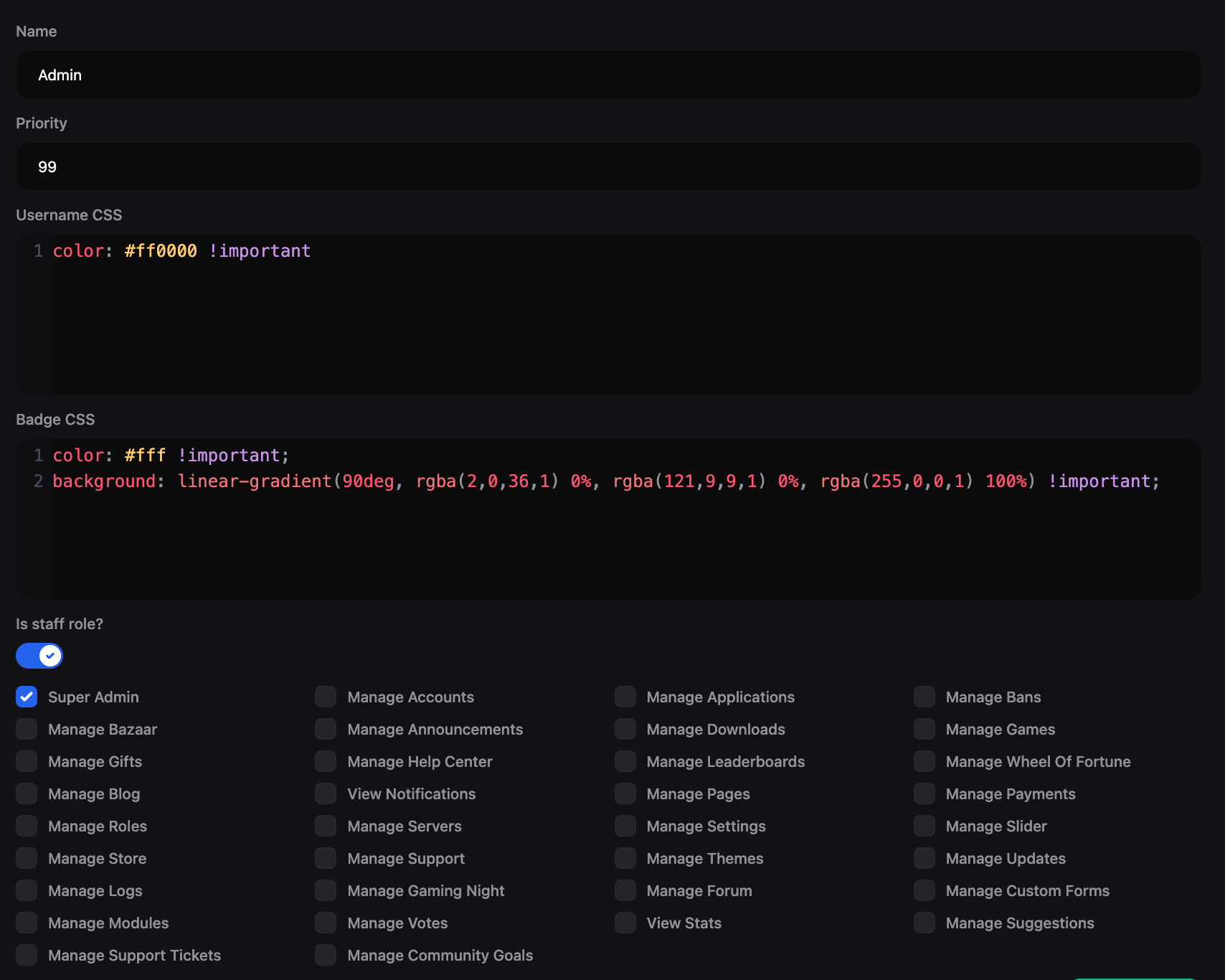
Go to **Dashboard > User Management > Roles > Add New**. You can add a role by providing the following information:
* **Name:** Enter the name of the role.
* **Priority:** Enter the priority of the role. The role with the highest priority will be given preference.
* **Username CSS:** Write CSS code for the role's username.
* **Badge CSS:** Write CSS code for the role's badge.
* **Is Staff Role:** Enable this option if you want to make this role a staff role.
* **Permissions:** If you enable the "Is Staff Role" option, you can set the permissions for the staff role. You can learn more about permissions [here](/using-leaderos/permissions).
Use **"!important"** in the CSS code to override the default CSS. For example, **"color: red !important;"**
 #### Example CSS code for a role
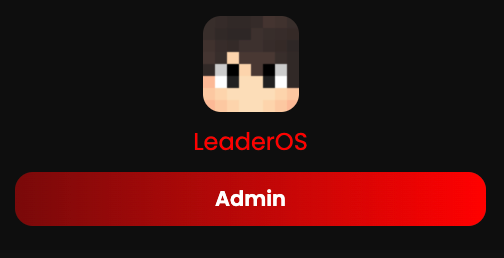
**For Username:**
```css theme={null}
color: #ff0000 !important;
```
**For Badge:**
```css theme={null}
color: #fff !important;
background: linear-gradient(90deg, rgba(2,0,36,1) 0%, rgba(121,9,9,1) 0%, rgba(255,0,0,1) 100%) !important;
```
**Preview:**
#### Example CSS code for a role
**For Username:**
```css theme={null}
color: #ff0000 !important;
```
**For Badge:**
```css theme={null}
color: #fff !important;
background: linear-gradient(90deg, rgba(2,0,36,1) 0%, rgba(121,9,9,1) 0%, rgba(255,0,0,1) 100%) !important;
```
**Preview:**
 ### How to add avatar border to a role?
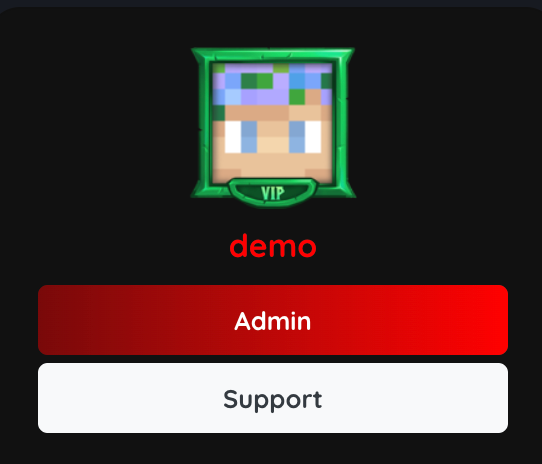
You can design avatar borders to display custom roles for your users like Hypixel forum. To design avatar borders, go to **Dashboard > Appearance > Custom CSS**. You can add the following CSS code to add an avatar frame to a role:
Please replace `ROLE_ID` with the role class you want to add the avatar frame to. To find the role id of a role, go to **Dashboard > User Management > Roles** and click the **"Edit"** button next to the role.
```css theme={null}
.avatar-ROLE_ID {
position: relative;
width: 74px;
height: 74px;
display: inline-block;
}
.avatar-ROLE_ID::after {
content: '';
position: absolute;
top: -5px;
left: -5px;
right: -5px;
bottom: -2px;
background: url('https://hypixel.net/styles/hypixel-v2/images/avatar-frames/vip.png') no-repeat center center;
background-size: cover;
z-index: 2;
}
```
### How to add avatar border to a role?
You can design avatar borders to display custom roles for your users like Hypixel forum. To design avatar borders, go to **Dashboard > Appearance > Custom CSS**. You can add the following CSS code to add an avatar frame to a role:
Please replace `ROLE_ID` with the role class you want to add the avatar frame to. To find the role id of a role, go to **Dashboard > User Management > Roles** and click the **"Edit"** button next to the role.
```css theme={null}
.avatar-ROLE_ID {
position: relative;
width: 74px;
height: 74px;
display: inline-block;
}
.avatar-ROLE_ID::after {
content: '';
position: absolute;
top: -5px;
left: -5px;
right: -5px;
bottom: -2px;
background: url('https://hypixel.net/styles/hypixel-v2/images/avatar-frames/vip.png') no-repeat center center;
background-size: cover;
z-index: 2;
}
```