> ## Documentation Index
> Fetch the complete documentation index at: https://docs.leaderos.net/llms.txt
> Use this file to discover all available pages before exploring further.
# VIP Table
> Create tables in store that compare each VIP features and help your players decide better while purchasing VIP.
### How to create a VIP Table?
To begin, create a category and VIP products in your store. If you have not yet created a VIP product, follow the steps [here](/using-leaderos/store/products).
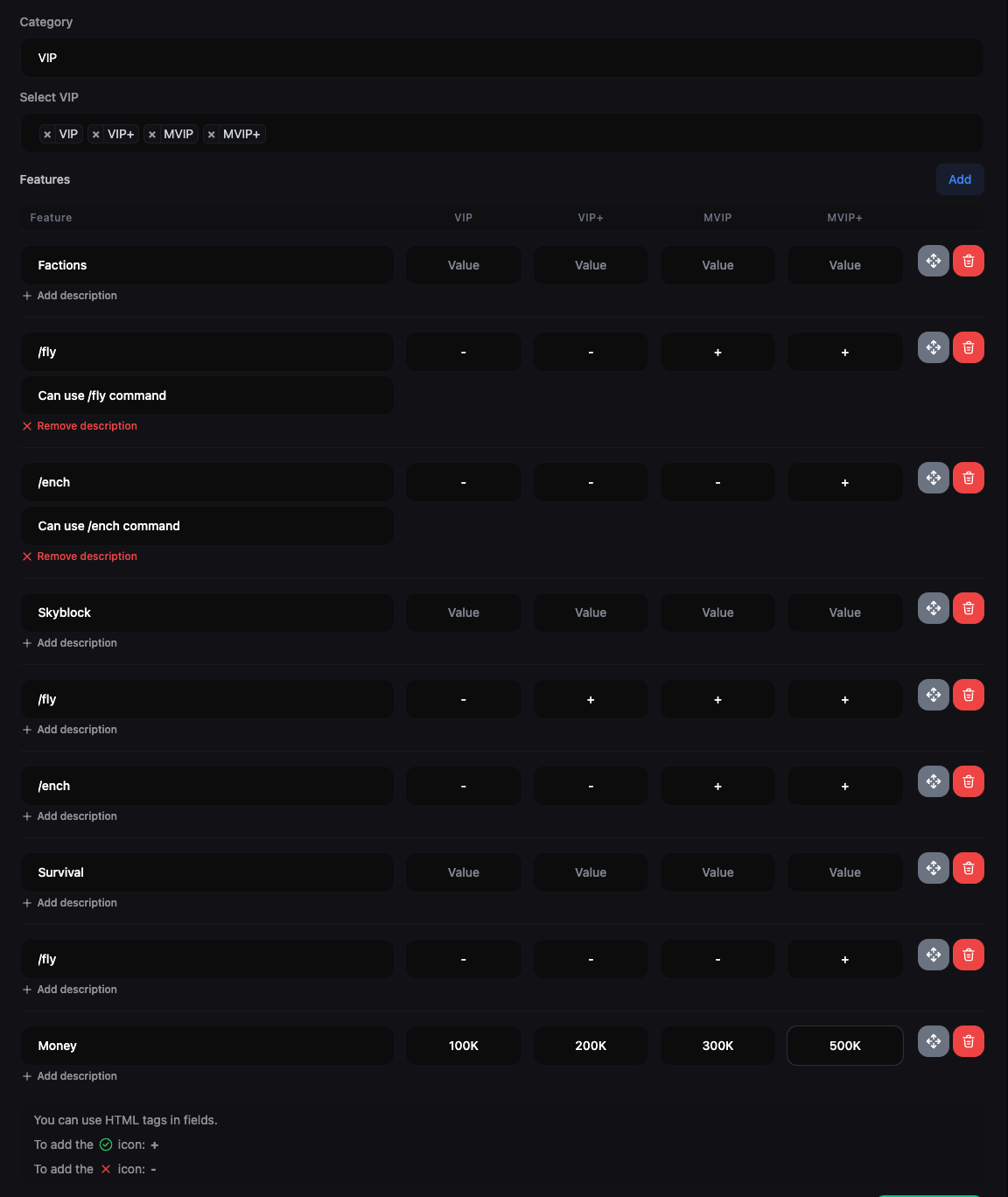
After creating the VIP products, go to **Dashboard > Store > VIP Tables > Add New**. You can add a VIP table by providing the following information:
* **Category:** Choose a category to create a VIP table for. The VIP table will be featured on the store page of the selected category.
* **Products:** Select the VIP products that you want to compare in the table. You can select only the VIP products that belong to the selected category.
* **Features:** Add the features that you want to compare in the table. You can add multiple features by clicking on the **Add** button. You can also move the features up and down by dragging the **Move** icon. To remove a feature, click on the **Remove** icon.
* **Feature:** Enter the feature that you want to compare. You can add descriptions for each feature by clicking on the **+ Add Description** button.
* **Value:** Enter the value of the feature for each VIP product. You can use HTML tags in fields. To add check icon, use "+" and for cross icon, use "-".
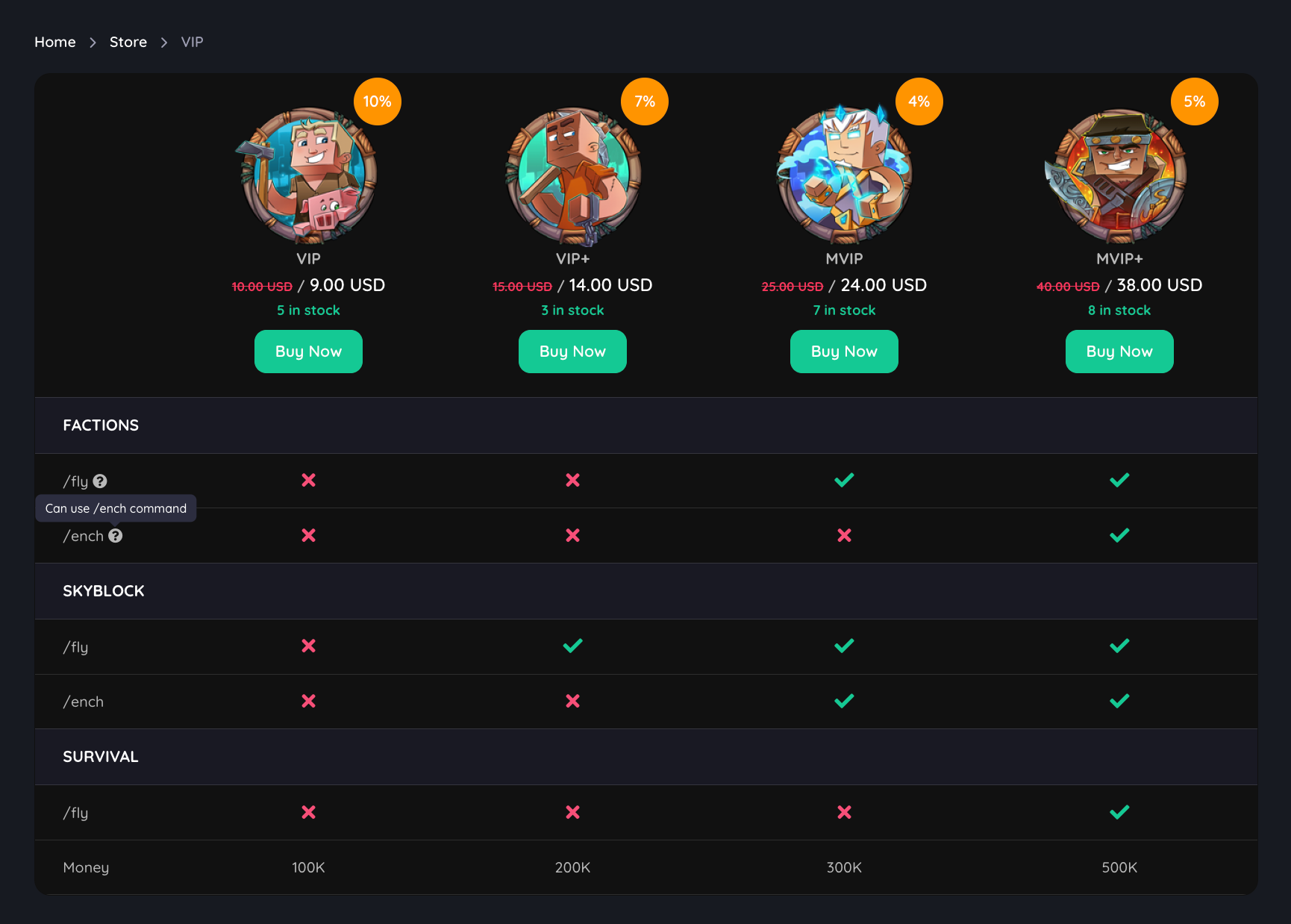
You can add separator columns by leaving the feature's values empty.
 ### How to add separator columns?
To add separator columns, leave the feature's values empty.
### How to add separator columns?
To add separator columns, leave the feature's values empty.

 ### How to see the VIP Table on the store page?
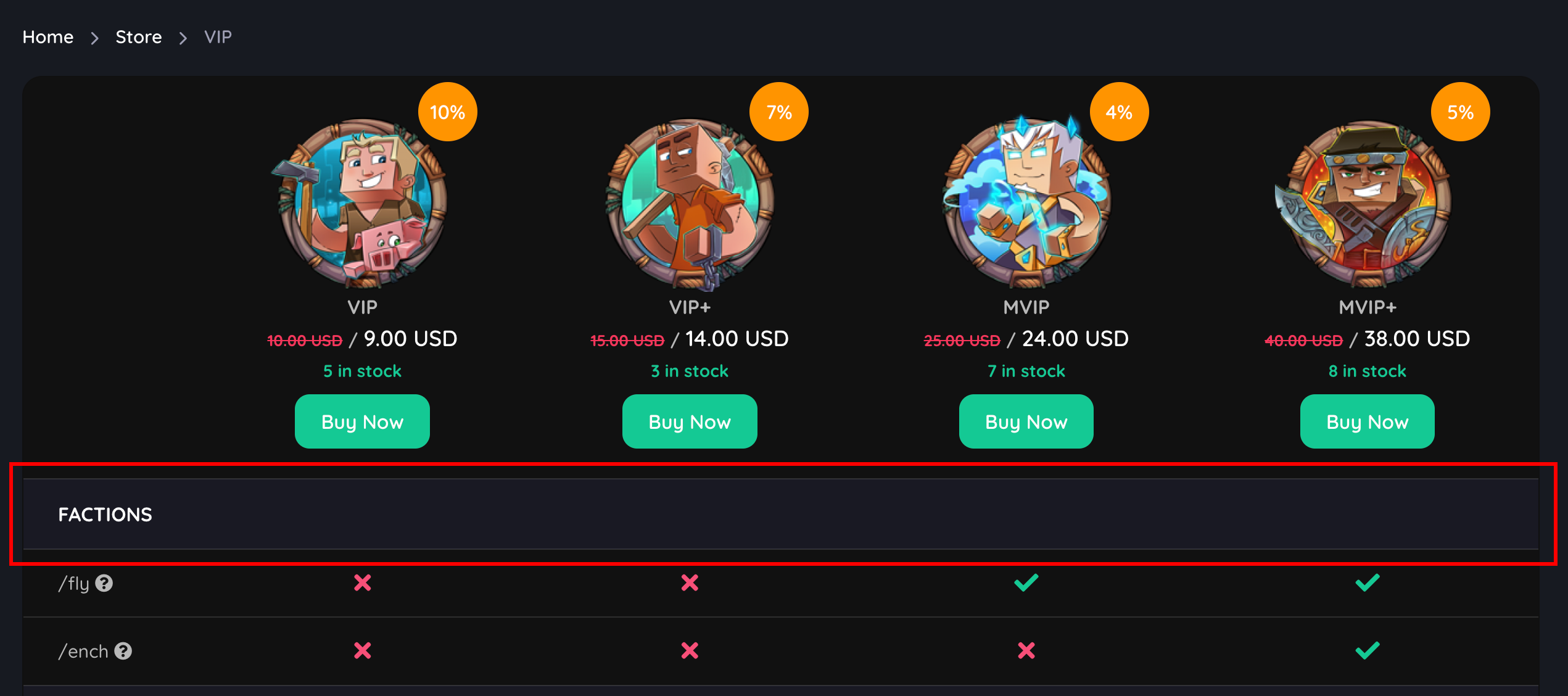
After creating the VIP table, it will be displayed on the store page of the selected category. You can also view the VIP table by going to **Dashboard > Store> VIP Tables** and clicking on the **View** button.
### How to see the VIP Table on the store page?
After creating the VIP table, it will be displayed on the store page of the selected category. You can also view the VIP table by going to **Dashboard > Store> VIP Tables** and clicking on the **View** button.