> ## Documentation Index
> Fetch the complete documentation index at: https://docs.leaderos.net/llms.txt
> Use this file to discover all available pages before exploring further.
# Quick Answers
> Using Quick Answers you increase the speed of your support team by providing them with a list of predefined answers to common questions.
### How to create a Quick Answer?
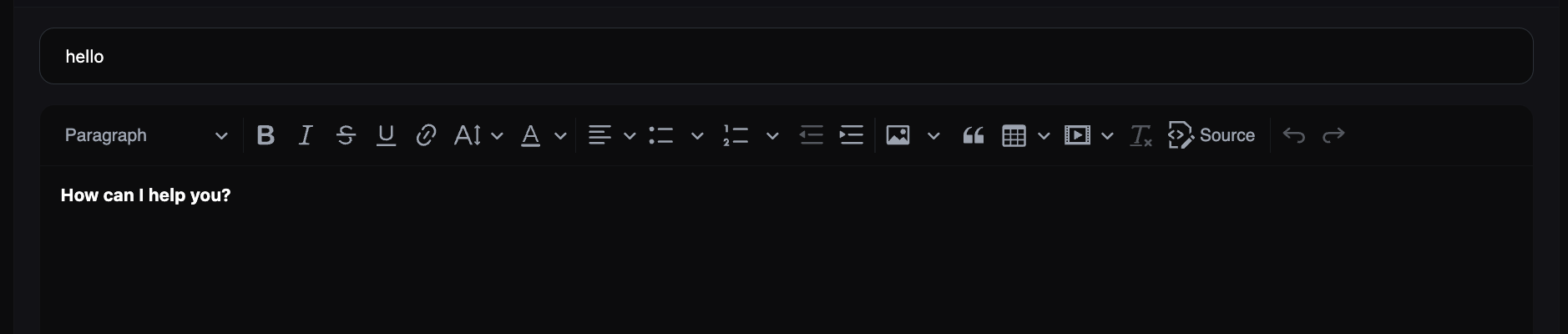
Go to **Dashboard > Support & Help > Support > Quick Answers > Add New**. You can add a quick answer by providing the following information:
* **Title:** The title of the quick answer.
* **Content:** The content of the quick answer. You can use HTML tags to format the content.
### How to use a Quick Answer?
When you are replying to a ticket, you can use a quick answer by clicking on the **Quick Answer** select box. A list of quick answers will appear, and you can select the one you want to use.
Before selecting a quick answer, the quick answer select box will look like this:
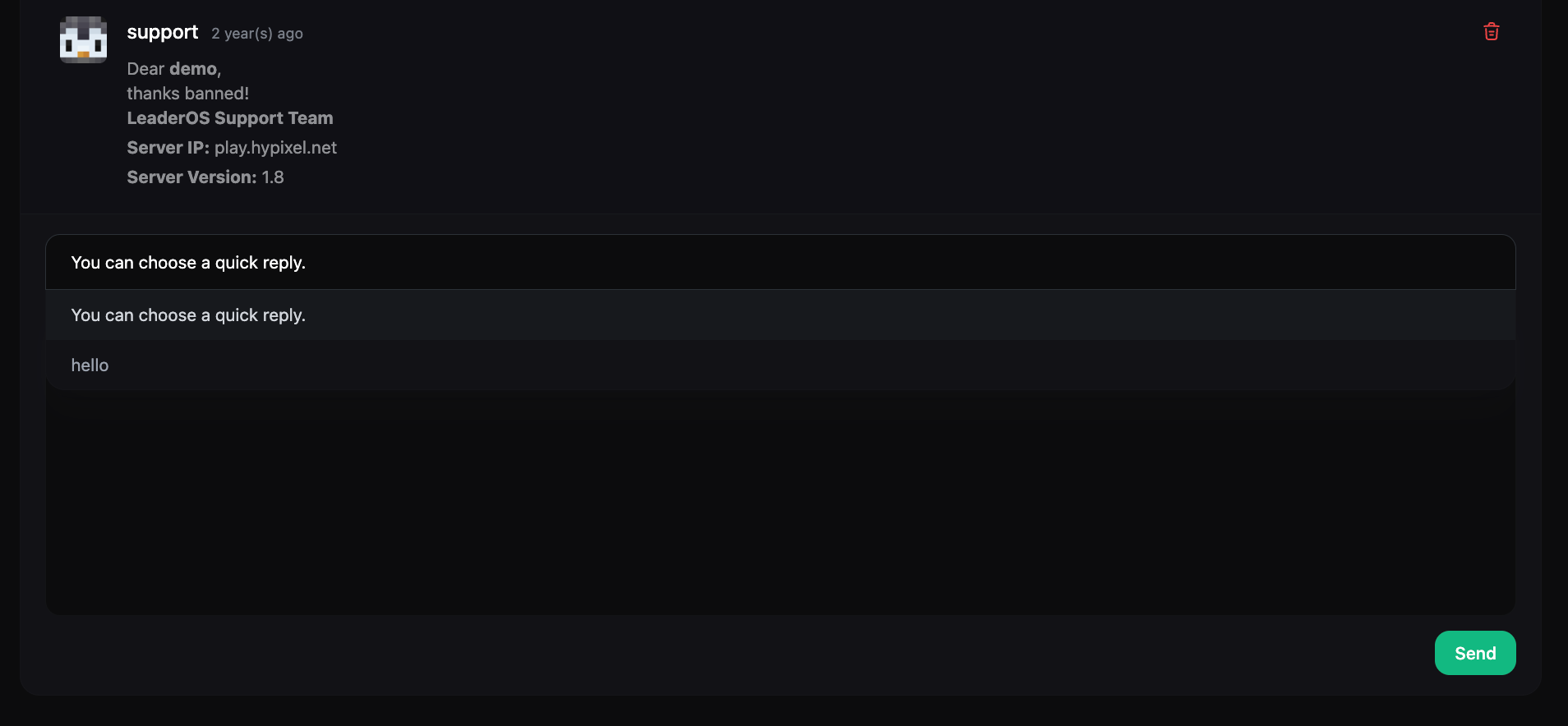 After selecting a quick answer, the content of the quick answer will be added to the reply box.