> ## Documentation Index
> Fetch the complete documentation index at: https://docs.leaderos.net/llms.txt
> Use this file to discover all available pages before exploring further.
# Tickets
> Manage your support tickets with your team and help your players.
### Ticket Statuses
* **Open**: The ticket is open and waiting for a response.
* **Closed**: The ticket is closed and no longer accepting responses. You can reopen the ticket by replying.
* **Answered**: The ticket has been answered by the support team.
* **User-Reply**: The ticket has been replied by the user and waiting for a response from the support team.
#### How to add a new ticket status?
Currently, you can't add a new ticket status. We may add this feature in the future.
### How to filter tickets by status?
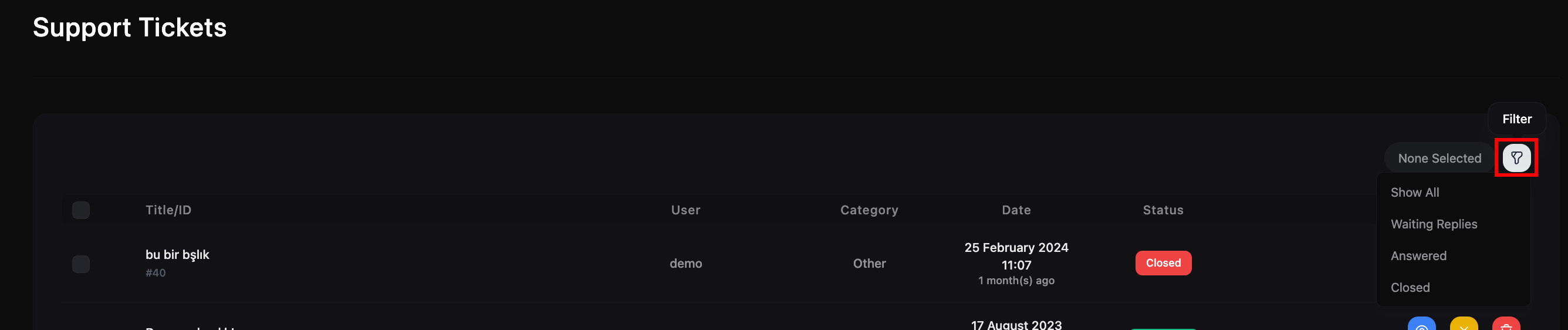
Go to **Dashboard > Support & Help > Support > Tickets**. You can filter tickets by status by clicking on the status filter dropdown.
 ### How to change ticket message template?
Go to **Dashboard > Settings > General Settings**. You can change the ticket message template by editing the **"Support Message Template"** field. You can use the following placeholders in this field:
* `%username%`: The username of the support message sender.
* `%servername%`: The server name.
* `%serverip%`: The server IP.
* `%serverversion%`: The server version.
* `%message%`: The message of the support message sender.
### How to prevent spams?
You can use Google reCAPTCHA integration to prevent spams. Learn more about how to integrate Google reCAPTCHA [here](/integrations/google-recaptcha).
### How to close a ticket?
Go to **Dashboard > Support & Help > Support > Tickets**. You can close a ticket by clicking on the **"Close"** button.
### How to change ticket message template?
Go to **Dashboard > Settings > General Settings**. You can change the ticket message template by editing the **"Support Message Template"** field. You can use the following placeholders in this field:
* `%username%`: The username of the support message sender.
* `%servername%`: The server name.
* `%serverip%`: The server IP.
* `%serverversion%`: The server version.
* `%message%`: The message of the support message sender.
### How to prevent spams?
You can use Google reCAPTCHA integration to prevent spams. Learn more about how to integrate Google reCAPTCHA [here](/integrations/google-recaptcha).
### How to close a ticket?
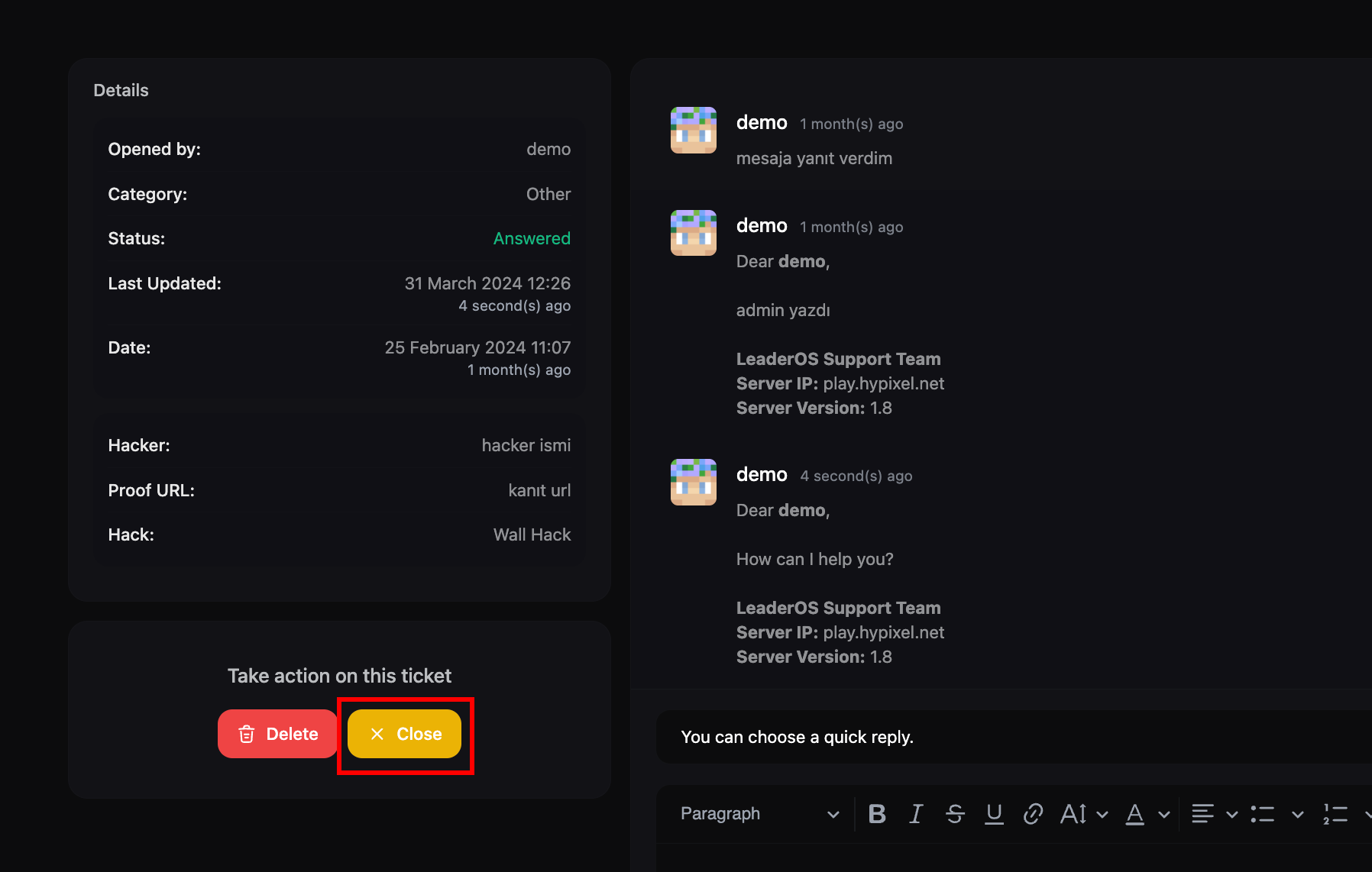
Go to **Dashboard > Support & Help > Support > Tickets**. You can close a ticket by clicking on the **"Close"** button.
 Also, you can close a ticket in the ticket page by clicking on the **"Close"** button.
 ### How to delete a ticket reply?
Go to **Dashboard > Support & Help > Support > Tickets**. You can delete a ticket reply by clicking on the **"Delete"** button.
### How to delete a ticket reply?
Go to **Dashboard > Support & Help > Support > Tickets**. You can delete a ticket reply by clicking on the **"Delete"** button.
 ### How to delete a ticket?
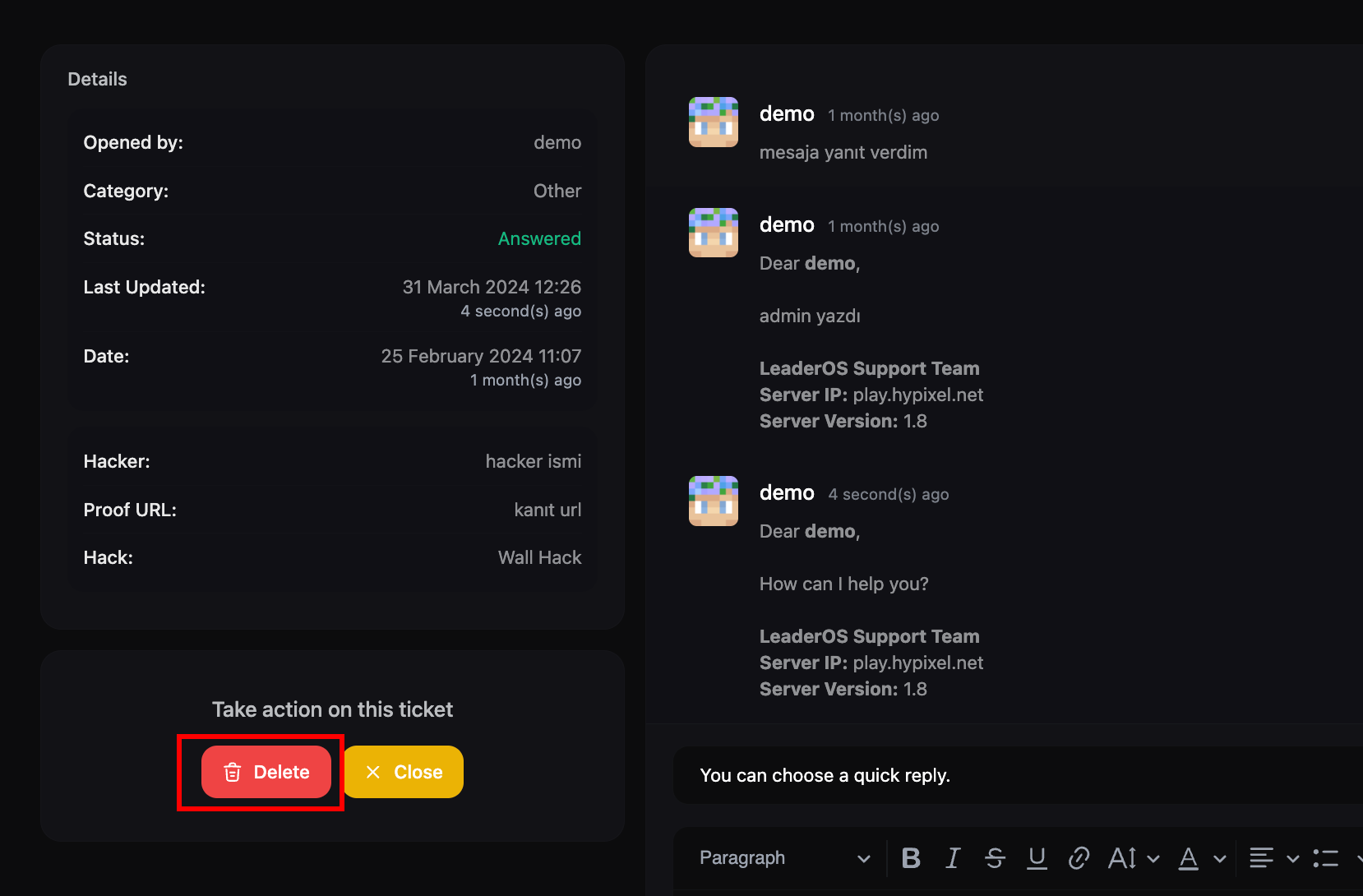
Go to **Dashboard > Support & Help > Support > Tickets**. You can delete a ticket by clicking on the **"Delete"** button.
### How to delete a ticket?
Go to **Dashboard > Support & Help > Support > Tickets**. You can delete a ticket by clicking on the **"Delete"** button.
 Also, you can delete a ticket in the ticket page by clicking on the **"Delete"** button.
 ### How to delete selected tickets?
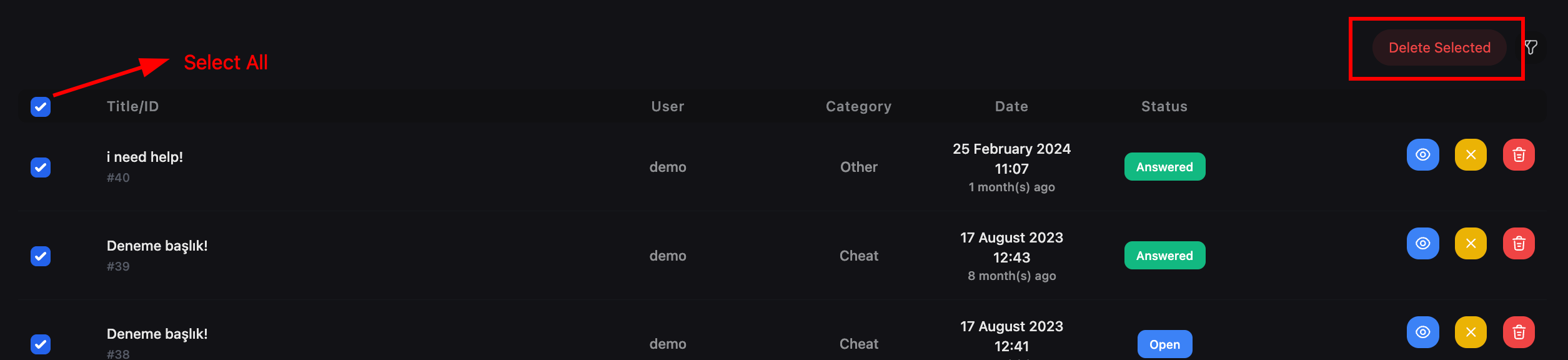
Go to **Dashboard > Support & Help > Support > Tickets**. You can delete selected tickets by selecting the tickets and clicking on the **"Delete Selected"** button.
### How to delete selected tickets?
Go to **Dashboard > Support & Help > Support > Tickets**. You can delete selected tickets by selecting the tickets and clicking on the **"Delete Selected"** button.
 ### How to ban a user from support?
Go to **Dashboard > User Management > Actions > Ban User**. You can ban a user from support by selecting the **"Support"** option.
### How to ban a user from support?
Go to **Dashboard > User Management > Actions > Ban User**. You can ban a user from support by selecting the **"Support"** option.