> ## Documentation Index
> Fetch the complete documentation index at: https://docs.leaderos.net/llms.txt
> Use this file to discover all available pages before exploring further.
# Users
> Manage users and staff, view their activities, and more.
### How to search for a user?
Go to **Dashboard > User Management > Users**. Here you can search for a user by their username, email, or user ID.
### How to see user activities?
Go to **Dashboard > User Management > Users**. Search for the user and click on the **Actions > View Profile** button. Here you can see the user's activities. You can see the following activities of a user:
* **Stats:** Shows the user's leaderboard stats.
* **Orders:** Shows the user's order history.
* **Chest:** Shows the user's chest items.
* **Tickets:** Shows support tickets opened by the user.
* **Credit Activities:** Shows the user's credit activities.
* **Wheel of Fortune Activities:** Shows the user's wheel of fortune activities.
* **Gift Activities:** Shows the user's gift activities.
* **Chest Activities:** Shows the user's chest activities.
* **Bazaar Activities:** Shows the user's bazaar activities.
* **Applications:** Shows the applications submitted by the user.
### How to add roles/permissions to a user?
Go to **Dashboard > User Management > Users > Edit User**. Here you can assign roles and permissions to the user.
If you want to give a permission to a user without giving a role, you can choose the permission from the **Permissions** section. You can learn more about permissions [here](/using-leaderos/permissions).
You need to give **"View Dashboard"** permission to the user to access the dashboard. Without this permission, the user will not be able to access the dashboard.
### How to add a temporary role to a user?
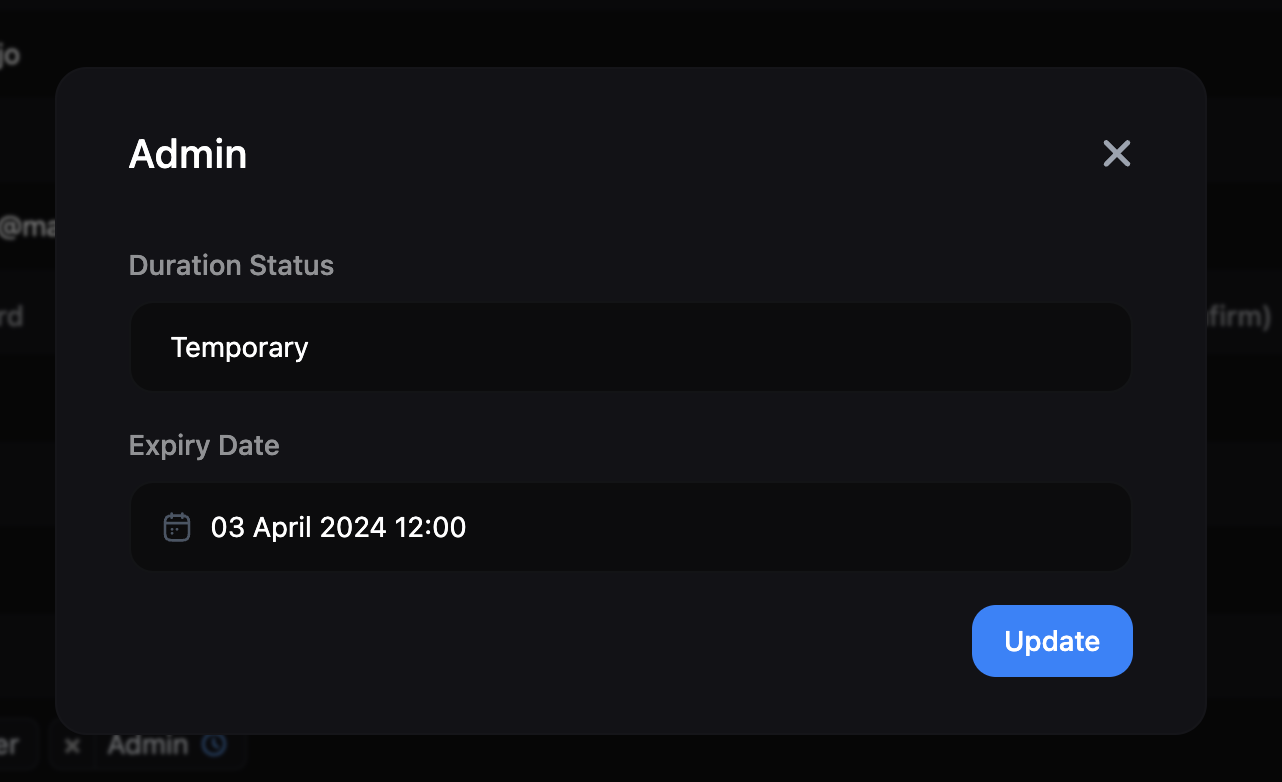
Go to **Dashboard > User Management > Users > Edit User**. Select the role from the **Roles** section and click the **"Clock"** icon. You can set the expiry date for the role here.

 ### How to see user's temporary roles?
Go to **Dashboard > User Management > Users > Edit User**. Here you can see the user's temporary roles in the **Roles** section. You can also see the expiry date of the role by hovering over the **"Clock"** icon.
### How to see user's temporary roles?
Go to **Dashboard > User Management > Users > Edit User**. Here you can see the user's temporary roles in the **Roles** section. You can also see the expiry date of the role by hovering over the **"Clock"** icon.
 ### How to list and manage staff members?
Go to **Dashboard > User Management > Staff** to view the list of staff members.
### How to ban/unban a user?
Go to **Dashboard > User Management > Actions > Ban User**. Here you can ban/unban a user. Learn more about [banning users](/using-leaderos/ban-management).
### How to send credits to a user?
Go to **Dashboard > User Management > Actions > Send Credits**. Here you can send credits to a user. Learn more about [sending credits](/using-leaderos/credits).
You can only send credits to a user if the Credits module is enabled.
### How to give a item to a user?
Go to **Dashboard > User Management > Actions > Send Chest Item**. Here you can give a chest item to a user.
You can only give a chest item to a user if the Chest module is enabled.
### How to list and manage staff members?
Go to **Dashboard > User Management > Staff** to view the list of staff members.
### How to ban/unban a user?
Go to **Dashboard > User Management > Actions > Ban User**. Here you can ban/unban a user. Learn more about [banning users](/using-leaderos/ban-management).
### How to send credits to a user?
Go to **Dashboard > User Management > Actions > Send Credits**. Here you can send credits to a user. Learn more about [sending credits](/using-leaderos/credits).
You can only send credits to a user if the Credits module is enabled.
### How to give a item to a user?
Go to **Dashboard > User Management > Actions > Send Chest Item**. Here you can give a chest item to a user.
You can only give a chest item to a user if the Chest module is enabled.