Features

  • AI: Allows players to ask questions to the AI directly from within the game. Note: You need an active LeaderOS AI subscription to use this feature.
  • Verification: Enables players to link their in-game accounts with their website accounts.
  • Discord Sync: With a simple command, this feature verifies a player’s Discord account and syncs it with your website, ensuring roles and nicknames are synchronized. It also allows users to log in to the website using their Discord credentials, streamlining user management and enhancing Discord integration.
  • Credits: Allows players to view and manage their credits via user-friendly in-game commands.
  • LeaderOS Connect: Securely transmits commands to the game server whenever a purchase is made on your website.

Installation

  1. Download the LeaderOS plugin JAR file and upload it to your server’s /mods folder.
  2. Start your server and wait for the plugin configuration files to be generated.
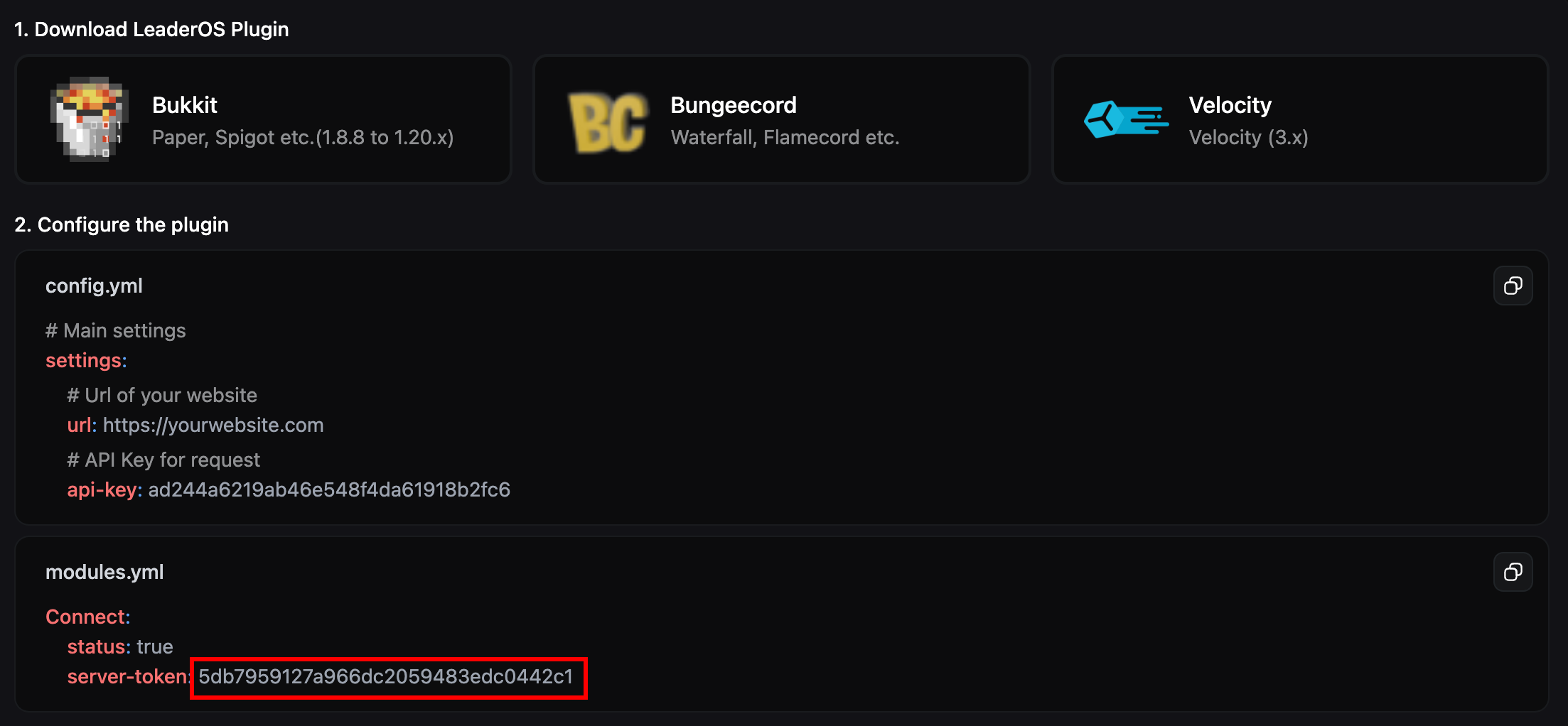
  3. Open the config.yml file and fill in the following fields:
    • url: Enter your website’s URL. Example: https://myhytaleserver.com
    • api-key: You can find your API key under Dashboard > Settings > API.
  4. To enable store purchases to send commands to the server, go to Dashboard > Store > Servers, add a new server, and select LeaderOS Connect as the console type.
  5. Open the modules.yml file, enable the connect module, copy the generated Console Token, and paste it into the server-token field.
  6. Restart your server.

Commands

CommandDescription
/leaderosShows all available commands.
/leaderos reloadReloads the plugin configuration.
/ai <prompt>Asks a question to the AI.
/verify <code>Links the in-game account with the website.
/discord-syncGenerates a link for Discord account synchronization.
/creditsShows your current credit balance.
/credits showShows the credit balance of a specific player.
/credits sendSends credits to another player.
/credits setSets a player’s credits to a specific amount.
/credits addAdds a specific amount of credits to a player.
/credits removeRemoves a specific amount of credits from a player.

Permissions

CommandPermission
/leaderosleaderos.help
/leaderos reloadleaderos.reload
/ai <prompt>leaderos.ai
/verify <code>leaderos.verify
/discord-syncleaderos.discord.sync
/creditsleaderos.credit.see
/credits showleaderos.credit.see.other
/credits sendleaderos.credit.send
/credits setleaderos.credit.set
/credits addleaderos.credit.add
/credits removeleaderos.credit.remove

How do I find my API Key?

You can find your API key by navigating to Dashboard > Settings > API.
If you do not see an API key on that page, click the “Reset” button to generate a new one.

How do I find my Server Token?

When you add a server with the “LeaderOS Connect” type via Dashboard > Store > Servers, the system will generate and display your server token.

How to create a new server?

  1. Go to Dashboard > Store > Servers > Add.
  2. Select “LeaderOS Connect” as the console type.
  3. Fill in the remaining server details.
  4. Click the “Create” button.
  5. You will be redirected to the plugin instructions page containing your token. LeaderOS Connect Server

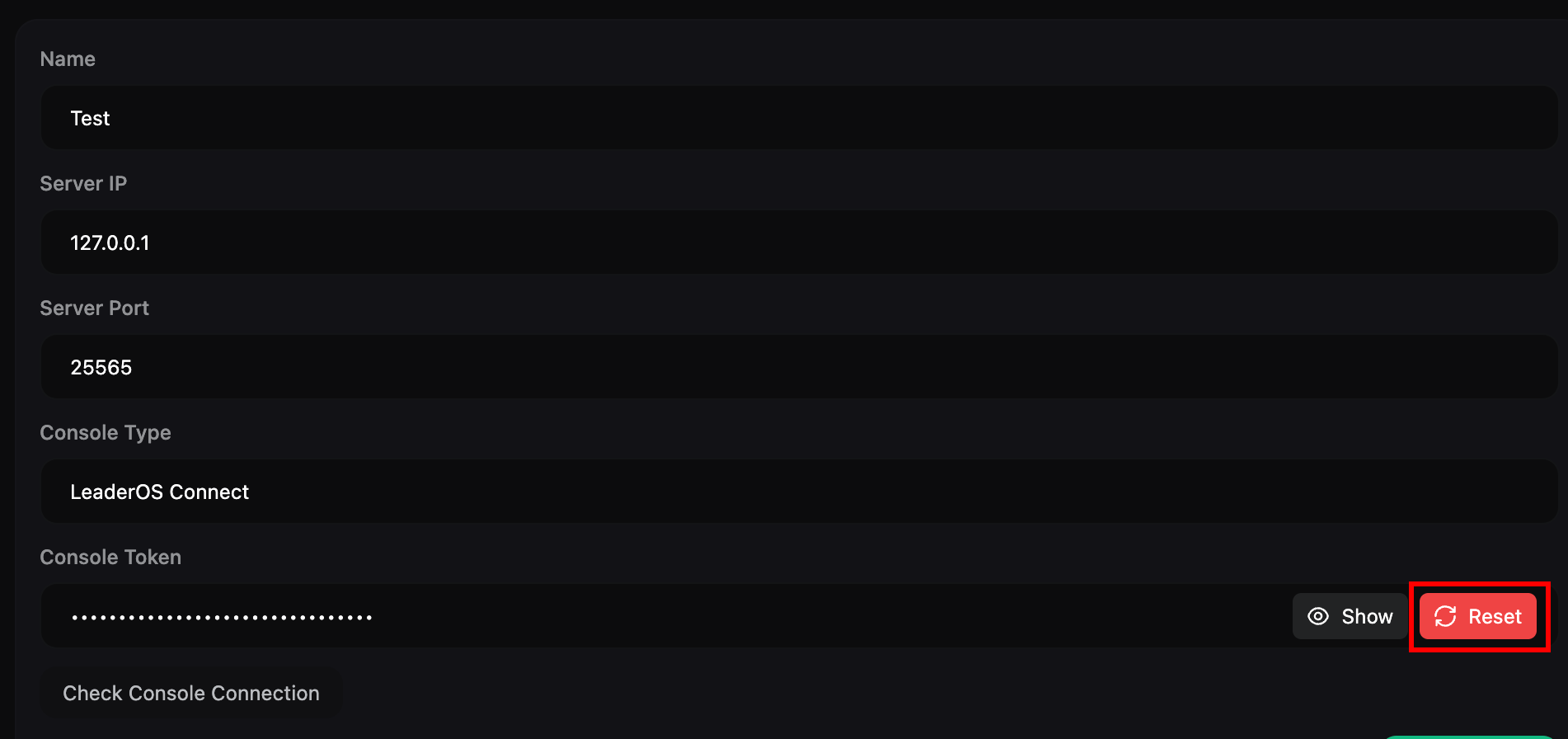
How to regenerate the Server Token?

  1. Go to Dashboard > Store > Servers and edit the relevant server.
  2. Click the “Reset” button.
  3. Replace the server-token value in your modules.yml file with the new token. Images

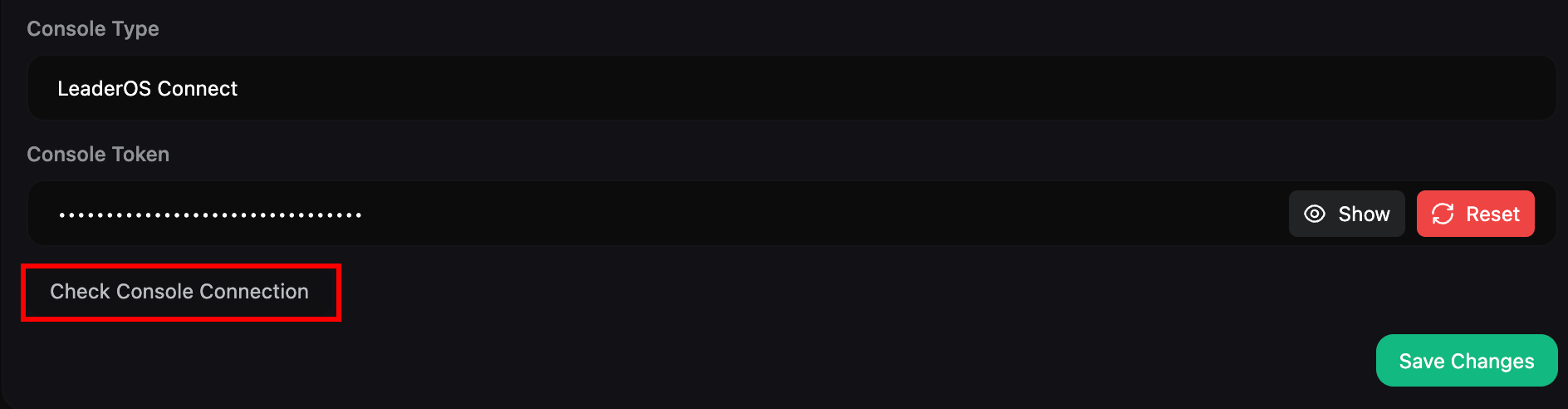
How to check my console connection?

First, install the LeaderOS plugin and configure the connect module in both config.yml and modules.yml. Once completed, start your server. When the console connection is established successfully, you will see a confirmation log in your server console. Images

Server token is not generating or is empty?

This issue usually occurs because your API key is not synced with the LeaderOS systems. To resolve this, follow these steps:
  • Go to Dashboard > Settings > API and reset your API key.
  • Go to Dashboard > Store > Servers and regenerate your server token.

Unblocking API for sites using Cloudflare

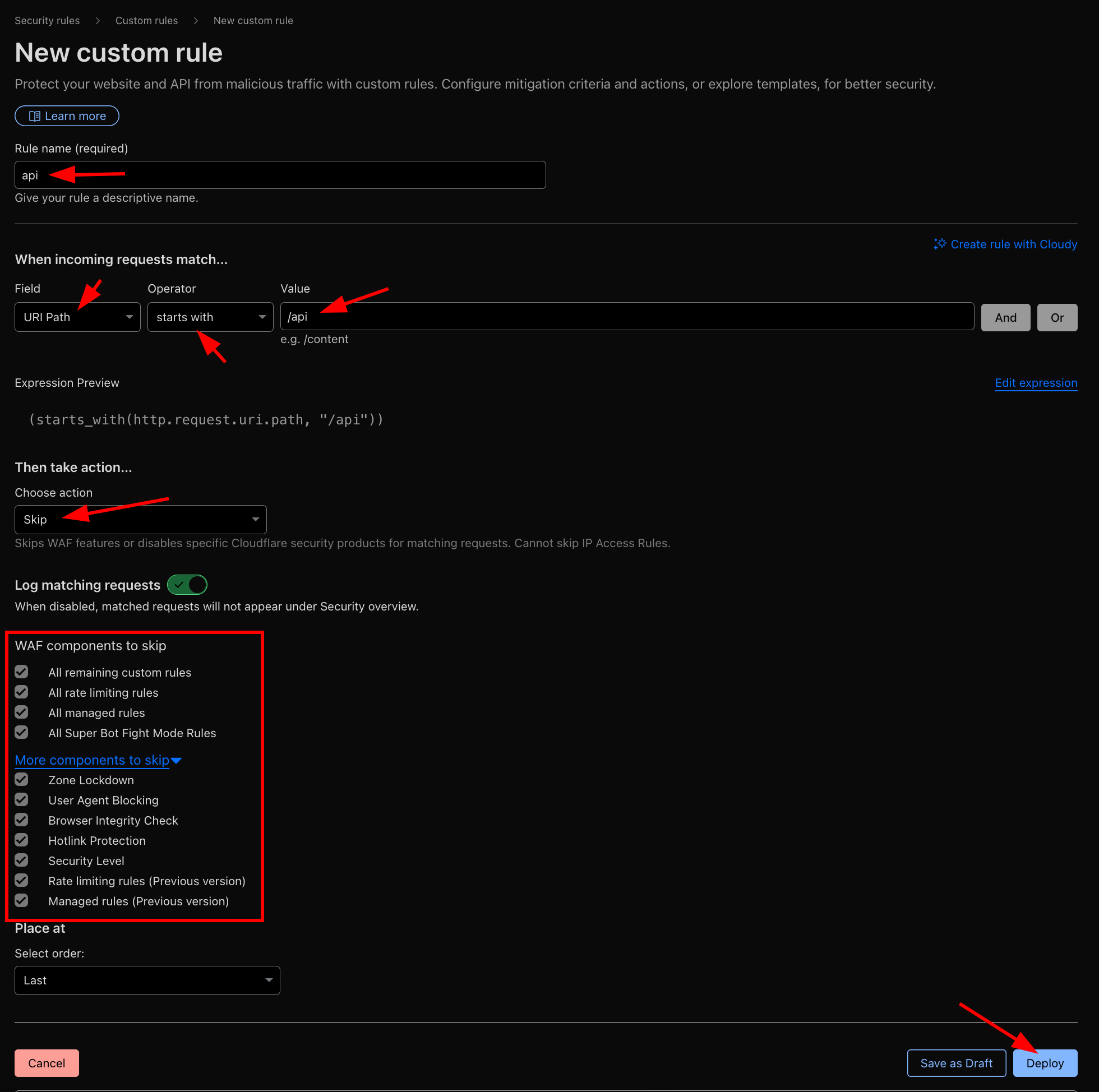
If you are using Cloudflare, it may block your API system and prevent player logins. In this case, follow the steps below to whitelist the API system in Cloudflare:

  1. Log in to your Cloudflare dashboard.
  2. Navigate to Cloudflare > Security > Security Rules > Create Rule > Custom Rules.
  3. Create a rule that matches the configuration shown in the image below. Cloudflare Custom Role